
IPTV Buffering Only at Night: Why It Happens and How to Fix It in 2026
Introduction
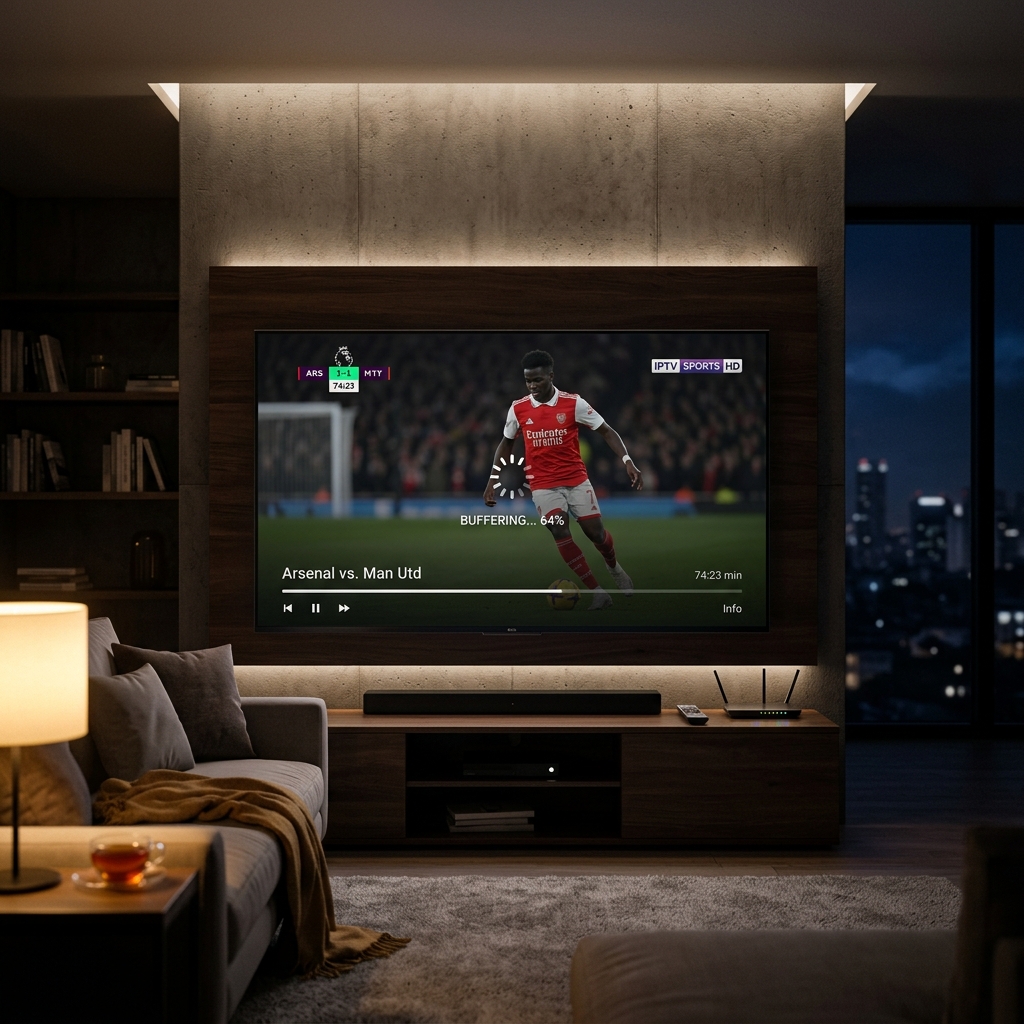
It is one of the most frustrating experiences in modern digital entertainment: you switch on your television at 2:00 PM on a Tuesday afternoon, open your IPTV player, and select a 4K live sports channel or high-definition broadcast. The stream launches instantly, channel switching takes under two seconds, and the picture remains crisp without a single stutter. Fast-forward to 8:30 PM that same evening, and that exact same stream on the exact same setup starts stuttering, dropping frames, displaying continuous loading wheels, or freezing entirely.
This specific phenomenon—where IPTV buffering only at night occurs while daytime playback remains completely flawless—is one of the most widely reported issues among streaming enthusiasts in 2026. When your IPTV works during the day but buffers at night, it creates immediate confusion. Many users instantly assume that their IPTV provider is delivering unstable streams, while others blame their Internet Service Provider (ISP) for deliberate throttling.
However, nighttime buffering rarely stems from a single, obvious flaw. Instead, the evening transition represents a dramatic shift in how data moves across your home network, local neighborhood infrastructure, and international internet backbones. The fact that the issue occurs on a strict time pattern is actually your most valuable diagnostic clue. Rather than guessing or making unsupported claims, peak-hour troubleshooting requires isolating every component in your streaming chain to pinpoint precisely where the bottleneck lies.
In this comprehensive guide from iScreenHD IPTV, we will break down the exact technical causes behind IPTV buffering during peak hours, detail what changes between day and night, provide a structured diagnostic testing framework, and walk you step-by-step through 10 actionable ways to stop buffering permanently.
IPTV Buffering at Night
Why Does IPTV Buffer Only at Night?
To understand why an IPTV connection becomes unstable in the evening, you must first recognize that live streaming relies on a continuous, uninterrupted delivery of data packets. Unlike pre-recorded streaming platforms that can load minutes of video ahead into system memory, live IPTV broadcasts are decoded in real-time. If incoming data packets are delayed by even a fraction of a second, the video pipeline starves, causing the player to pause and buffer.
When IPTV slows down at night, the underlying causes generally fall into one of several interconnected categories:
- Household Network Congestion: Multiple family members or roommates returning home, connecting smartphones, streaming 4K movies, downloading game patches, or conducting video calls simultaneously.
- ISP Network Congestion: High evening traffic across shared neighborhood fiber or cable nodes (known as contention ratios), leading to reduced available bandwidth and elevated latency.
- Wi-Fi Radio Frequency Interference: A massive increase in active wireless networks in your immediate vicinity during prime time, causing packet loss on the 2.4 GHz and 5 GHz bands.
- Regional Internet Infrastructure Load: Heavy traffic on major internet exchange points (IXPs) and routing nodes during prime-time viewing hours.
- IPTV Service and Server Load: A peak-hour surge of concurrent subscribers accessing the same live event or channel feed simultaneously.
- Device Thermal and Performance Limitations: Hardware that has accumulated background processes or suffered thermal throttling after extended daytime usage.
- Router Buffer Exhaustion: Older or lower-tier home routers struggling to manage NAT tables, firewall rules, and QoS routing under high simultaneous device demand.
- Unnoticed Background Downloads: Cloud photo syncing, automated OS updates, or peer-to-peer applications consuming upstream and downstream capacity.
- Multiple Simultaneous IPTV Streams: Exceeding your subscribed connection limit across multiple household screens.
- Suboptimal IPTV Player Configurations: Outdated decoder engines, insufficient buffer sizes, or disabled hardware acceleration settings.
Recognizing that IPTV buffering causes are multi-faceted prevents wasted effort. The evening timing proves that your hardware and player configuration are capable of handling the stream; the task is identifying which peak-hour variable breaks the chain.
What Changes Between Daytime and Nighttime?
The physical hardware of your television, router, and streaming stick does not magically change when the sun goes down. What changes fundamentally is the volume of data traffic competing for transport across local and global networks.
More People Using the Home Network
During off-peak hours (8:00 AM to 5:00 PM), home network utilization is typically minimal. A single user might stream background music or browse web pages, leaving up to 95% of your total internet bandwidth idle.
Between 6:00 PM and 11:00 PM, household occupancy reaches its maximum. A typical modern home during evening hours experiences intense network competition:
- 4K Video Streaming: Family members watching Netflix, Disney+, or YouTube on separate screens (consuming 15–25 Mbps per 4K stream).
- Online Gaming: Consoles or PCs playing fast-paced multiplayer titles that demand low latency and jitter-free delivery.
- Background Game Updates: Steam, Xbox Live, or PlayStation Network downloading 20 GB to 50 GB patches at full connection speed.
- Cloud Synchronization: Mobile phones backing up high-resolution video and photo libraries to iCloud or Google Photos upon connecting to home Wi-Fi.
- Smart Home Devices: Security cameras uploading motion events continuously to cloud servers.
When multiple high-demand activities run concurrently, your router must split attention between hundreds of data requests per second. If Quality of Service (QoS) rules are not configured, your live IPTV stream must fight for equal priority, leading to IPTV freezing at night.
Peak Internet Usage
Beyond your front door, your internet connection links to a neighborhood node operated by your Internet Service Provider. Residential broadband connections are designed around a concept called contention ratio—meaning a single fiber or coaxial pipeline is shared among 20 to 50 individual households.
During the day, most neighbors are away from home. At night, thousands of households in your immediate postal area begin streaming live television, watching movies, and downloading media. This creates widespread IPTV network congestion.
It is important to differentiate between general infrastructure congestion and deliberate ISP management:
- General Local Congestion: Physical capacity limits on local neighborhood switches, causing temporary drops in throughput and spikes in latency for all internet traffic.
- Traffic Management & Peering Bottlenecks: Saturation on specific routing pathways between your ISP's core network and international media distribution servers during prime time.
- ISP Network Policies: Automated traffic shaping systems implemented by some ISPs to manage total network load during peak hours.
Rather than assuming an ISP is intentionally target-blocking your service, careful diagnostic testing helps clarify whether the speed drop affects your entire connection or specific streaming protocols.
More Users Watching Popular IPTV Content
Nighttime coincides with prime-time entertainment schedules and live sports kickoffs. When major UEFA Champions League matches, NBA games, or marquee pay-per-view events take place, tens of thousands of subscribers log into the exact same channel feed at the exact same moment.
High-quality IPTV providers utilize enterprise CDN (Content Delivery Network) architecture with load balancing to distribute viewer traffic across multiple edge servers. However, lower-tier or unverified providers running on single dedicated servers quickly become overwhelmed, causing buffering that is restricted strictly to prime-time events.
 Peak Hour Network Congestion
Is Your Internet Connection Actually the Problem?
One of the most common statements made by users experiencing nighttime buffering is: "My internet cannot be the problem because I ran a speed test and got 300 Mbps!"
Unfortunately, a standard speed test result can be deceptive when troubleshooting live streaming. Speed test tools typically connect to a local server hosted by your ISP or a nearby data center, downloading short burst files to measure maximum potential bandwidth.
Live IPTV streaming requires connection stability, not just high peak speeds. An IPTV stream broadcasting in 1080p 60fps or native 4K typically requires a continuous, unbroken transfer rate of 15 Mbps to 30 Mbps. However, if your connection experiences severe fluctuations, the stream will freeze despite having a 300 Mbps ceiling.
When evaluating your connection for IPTV streaming at night, pay close attention to these vital metrics:
- Download Speed Consistency: Does your throughput stay above 30 Mbps continuously, or does it drop to 3 Mbps for two seconds every minute?
- Latency (Ping): The time required for a data packet to travel from your device to the server and back. High latency (above 100ms) causes delays in stream initialization.
- Jitter: The variation in arrival time between data packets. High jitter is the single biggest technical cause of live stream buffering. If packet 1 arrives in 15ms but packet 2 takes 180ms, your player's buffer starves.
- Packet Loss: Data packets that are corrupted or dropped entirely during transit over congested Wi-Fi or ISP nodes, requiring retransmission and causing immediate video pauses.
- Wi-Fi Signal Degradation: Signal attenuation caused by walls, furniture, and competing wireless signals operating on identical radio channels.
Transform Your TV withiScreenHD IPTV
How to Test IPTV During the Day vs at Night
To isolate the root cause of nighttime buffering, you must conduct a controlled, side-by-side diagnostic comparison between off-peak and peak hours. By keeping all hardware, software, and stream variables identical, you can scientifically isolate what changes in the evening.
Test 1 — Daytime (Off-Peak: 1:00 PM – 4:00 PM)
- Select a Benchmark Channel: Choose a high-bitrate live channel (such as a 1080p 60fps sports channel).
- Record Playback Metrics: Note how long the stream takes to load, whether channel zapping is instantaneous, and if any buffering occurs over a 15-minute test period.
- Run a Detailed Speed Test: Use a speed test app directly on your streaming device (not a mobile phone). Note your Download Speed, Latency, and Jitter.
- Document Connection Details: Record the exact device, IPTV player application, video decoder setting, and whether you are connected via Wi-Fi (2.4 GHz or 5 GHz) or Ethernet.
Test 2 — Evening (Peak Hours: 8:00 PM – 10:30 PM)
- Select the Exact Same Benchmark Channel: Do not switch to a different channel or resolution.
- Repeat the 15-Minute Observation: Note buffer frequency, audio/video desync, or quality drops.
- Run the Speed Test on the Same Device: Compare evening Download Speed, Latency, and Jitter directly against your daytime numbers.
- Evaluate the Delta:
- If daytime download is 250 Mbps with 4ms jitter, but evening download drops to 12 Mbps with 85ms jitter, your local network or ISP is suffering from severe peak-hour congestion.
- If evening speed test metrics remain identical to daytime (250 Mbps, 4ms jitter), but the IPTV stream buffers, the investigation shifts to local Wi-Fi interference, background device load, or provider server performance.
10 Ways to Fix IPTV Buffering Only at Night
Once you have verified that your buffering follows a nighttime pattern, implement these 10 practical, field-tested troubleshooting steps to resolve the bottleneck.
1. Test With Ethernet
Wireless connections are inherently vulnerable to environmental interference, signal attenuation, and radio channel overlap. Testing your streaming device with a physical Ethernet cable is the single most effective diagnostic step you can take.
Connecting directly via Cat6 Ethernet eliminates Wi-Fi packet loss, reduces jitter to near zero, and isolates whether wireless interference is causing your evening playback drops.
If switching to Ethernet completely eliminates nighttime buffering, your local Wi-Fi environment is confirmed as the culprit. If buffering persists over a wired connection, you can immediately rule out Wi-Fi issues and focus on router settings, household bandwidth limits, or ISP performance. For detailed device setup advice, review our guide on how to setup IPTV on Firestick.
2. Switch From 2.4 GHz to 5 GHz Wi-Fi
If connecting an Ethernet cable is physically impossible due to distance, evaluate your Wi-Fi frequency band. Most modern routers broadcast two distinct wireless networks:
- 2.4 GHz Band: Has longer wave distance and penetrates walls easily, but offers limited bandwidth (max real-world ~50 Mbps) and suffers extreme interference from neighboring routers, Bluetooth devices, and microwaves.
- 5 GHz Band: Provides significantly higher throughput (300+ Mbps), features wider non-overlapping channels, and experiences minimal neighbor interference. However, it has shorter range and struggles through thick concrete walls.
In apartment buildings or dense suburban areas, 2.4 GHz channels become completely saturated at night as neighbors turn on their TVs and laptops. Switching your Firestick, Android TV box, or Smart TV to the 5 GHz band instantly bypasses 2.4 GHz congestion. If distance is an issue, consider positioning your router closer or using a mesh Wi-Fi system.
3. Stop Background Downloads and Streaming
Household bandwidth is a finite resource. If your internet package provides 50 Mbps down, and a secondary household device initiates a game update or cloud photo backup consuming 42 Mbps, your IPTV stream is left with a starved 8 Mbps window.
During peak hours, take control of your household network:
- Pause Steam, PlayStation, or Xbox background updates.
- Disable automated cloud backups on mobile phones during viewing hours.
- Ask family members to temporarily pause unnecessary 4K video streams or heavy torrent client downloads.
- Disconnect unused smart tablets and secondary devices from the Wi-Fi network.
Eliminating competing household streams ensures your IPTV player receives an uninterrupted priority allocation of incoming bandwidth.
4. Restart the Router Before Peak Hours
Home routers are specialized computers equipped with processors, RAM, and operating systems. Over days of continuous operation, router memory accumulates stale NAT translation tables, temporary cache files, and fragmented buffer memory.
Establishing a habit of restarting your router right before peak viewing hours (around 6:30 PM) clears internal memory buffers, forces a clean re-assignment of IP addresses via DHCP, and allows your router to negotiate fresh, less congested wireless channels with neighboring devices.
While restarting a router cannot fix a physically degraded ISP line, it resolves temporary hardware memory leaks that degrade performance during heavy evening traffic.
5. Check for Multiple IPTV Streams
Every IPTV subscription plan specifies a strict maximum number of simultaneous connections (e.g., 1, 2, or 4 concurrent devices). If your plan supports 1 connection, and a family member launches the IPTV app on a bedroom Smart TV while you are watching in the living room, server-side security rules will cause immediate stream buffering, freezing, or account lockout.
Ensure that secondary devices in your home are completely closed out of the IPTV application when not in use. Force-closing the player app prevents hidden background streaming from consuming your active connections.
6. Check Your Device Performance
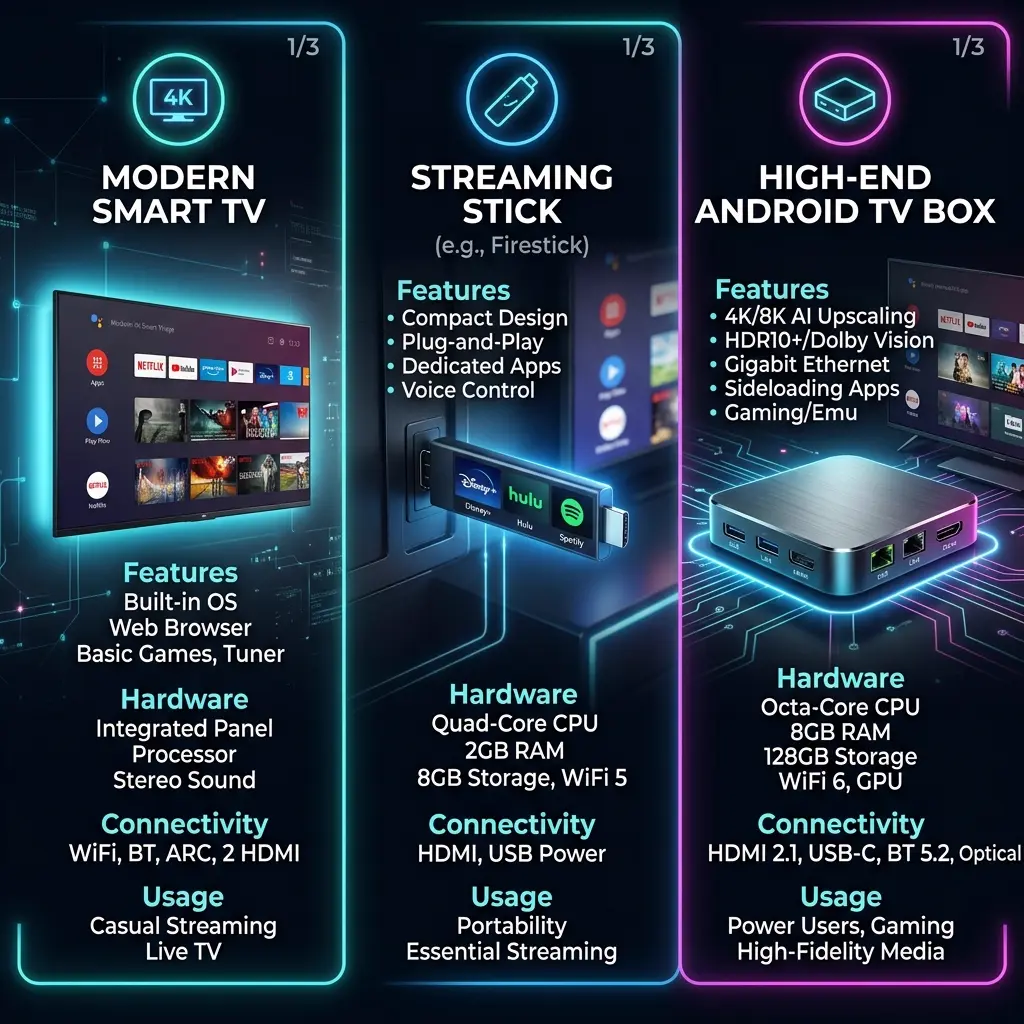
Streaming high-bitrate 1080p and 4K video requires substantial processing power from your streaming device's CPU and GPU. Older Smart TVs, budget streaming sticks, or generic Android boxes often feature minimal RAM (1 GB or less) and weak cooling.
If a device has been running apps all day, background processes accumulate in memory, and internal hardware temperatures rise. High temperatures cause the device processor to thermally throttle—deliberately slowing down clock speeds to prevent hardware damage.
To optimize device performance before evening sessions:
- Reboot the streaming device to clear active system RAM.
- Uninstall unused applications to free up internal flash storage (maintain at least 1.5 GB of free space for video buffering).
- Clear the application cache of your IPTV player in device settings.
- Ensure your streaming device is located in an open area with adequate ventilation rather than trapped behind a hot television panel.
7. Check IPTV Player Settings
Your choice of IPTV player application and its internal configuration plays a decisive role in absorbing peak-hour network jitter. Popular players like IPTV Smarters Pro, TiviMate, and XCIPTV offer customizable playback engines.
Key settings to adjust for nighttime stability:
- Stream Buffer Size: Increase the player buffer setting from "Small" (0.5s) to "Medium" or "Large" (3 to 5 seconds). A larger buffer pre-loads several seconds of video into RAM, allowing playback to continue smoothly even if network latency spikes for a brief moment.
- Hardware Acceleration / Video Decoder: Toggle between Hardware (HW) and Software (SW) decoding. Hardware decoding offloads video processing to the device's dedicated GPU, dramatically reducing CPU load and playback stuttering. If you experience authorization issues on specific players, refer to our guide on fixing IPTV Smarters failed to authorize errors.
- Playback Protocol: Where supported, switch from TS (Transport Stream) to HLS (HTTP Live Streaming), which handles fluctuating network conditions more gracefully.
For a complete comparison of top streaming applications, explore our expert guide on the best IPTV players for 4K streaming.
8. Test Another Device
If buffering persists on your main television screen, perform a cross-device comparison test. Install your IPTV credentials on an alternate device connected to the exact same network—such as an iPad, Android smartphone, or laptop.
If the stream buffers on your older Smart TV but plays flawlessly on your modern smartphone at 9:00 PM, the bottleneck is isolated directly to your Smart TV's processing power, network card, or outdated app implementation. If you use Apple hardware, review our guide on Apple TV IPTV setup.
9. Test Another Network
To definitively prove whether nighttime buffering is caused by your local ISP connection or your IPTV service, test your player using a completely independent network connection.
The simplest diagnostic method is enabling a 4G/5G mobile hotspot on your smartphone and connecting your streaming device to the hotspot during peak buffering hours.
- Result A (Hotspot streams perfectly while home Wi-Fi buffers): Proves conclusively that your IPTV service and streaming device are functioning correctly. The bottleneck lies entirely within your home broadband connection or ISP peak-hour routing.
- Result B (Hotspot buffers identically to home Wi-Fi): Points toward a potential provider-side server load issue, specific channel feed problem, or device hardware limitation.
10. Contact the IPTV Provider if the Pattern Persists
If you have verified that your home network is optimized, tested Ethernet, confirmed stable 50+ Mbps speed tests, isolated device performance, and verified that alternate networks experience the same issue, it is time to contact your IPTV provider's support team.
To ensure rapid resolution, provide support technicians with structured diagnostic data:
- The exact local time buffering begins and ends.
- The specific streaming device and IPTV application version used.
- The specific channel(s) affected (and whether VOD movies buffer or stream fine).
- Your daytime vs nighttime speed test metrics (Download, Ping, Jitter).
- Confirmation of whether Ethernet and alternate networks were tested.
Security Note: Never publicly share your account passwords, MAC addresses, or private subscription M3U URLs in public forums or unencrypted channels.
 Wi-Fi vs Ethernet for IPTV
How to Tell Whether the Problem Is Your Wi-Fi
Wireless issues are the single most frequent cause of nighttime streaming degradation. Use this quick reference checklist to evaluate your Wi-Fi environment:
Likely a Wi-Fi / Local Network Issue If:
- Other streaming platforms (Netflix, YouTube, Prime) also experience buffering or resolution drops at night on the same device.
- Connecting a physical Ethernet cable completely fixes the buffering immediately.
- The buffering occurs on a television located far from the router, while a device in the same room as the router streams smoothly.
- Other household members are actively running heavy downloads or online games.
- Your Wi-Fi speed test shows high jitter (above 30ms) or low signal strength (below -70 dBm).
Less Likely to Be a Wi-Fi Issue If:
- Non-IPTV streaming services maintain flawless 4K resolution on the exact same device.
- Plugging in an Ethernet cable produces the exact same buffering behavior.
- Multiple devices connected to different rooms and bands experience identical buffering on the same channel simultaneously.
- Speed tests taken on Wi-Fi show rock-solid throughput, low latency (<15ms), and zero jitter.
How to Tell Whether Your ISP May Be Causing the Problem
Determining whether an Internet Service Provider is responsible for peak-hour buffering requires looking for consistent operational patterns rather than jumping to unverified conclusions.
Potential indicators of ISP-level peak-hour degradation include:
- Systemic Speed Drops: Speed tests conducted across all home devices show a consistent 70% or greater reduction in download throughput between 8:00 PM and 10:30 PM.
- Elevated Peak Latency: Ping times to external servers increase from 12ms during the day to 120ms+ during evening hours.
- Multi-Service Slowdowns: Web pages load visibly slower, file downloads drop in speed, and third-party video platforms struggle across your entire home.
- Hotspot Contrast: Connecting your streaming device to a 5G mobile hotspot instantly restores smooth playback, while switching back to home broadband immediately resumes buffering.
Only your ISP can verify its local node capacity, contention ratios, or routing policies. If diagnostic tests point to ISP congestion, contacting their support team to request line diagnostics or upgrading to a fiber connection with lower contention ratios can resolve the underlying issue.
How to Tell Whether the IPTV Service Is the Problem
While local network and ISP factors account for the majority of streaming issues, IPTV service-side bottlenecks can occur during major global viewing events.
A service-side issue is likely indicated when:
- Multiple independent devices (Smart TV, mobile phone, laptop) buffer on the same stream.
- The buffering occurs across multiple independent internet networks (home fiber broadband AND mobile 5G hotspot).
- Third-party speed tests, Netflix 4K streams, and general web browsing operate at maximum capacity on your home network without issue.
- The buffering is restricted to specific high-demand live channels, while other live channels and VOD movies stream smoothly.
High-tier providers like iScreenHD IPTV invest heavily in load-balanced server infrastructure and multi-gigabit CDN capacity to handle prime-time viewing spikes, ensuring that subscriber streams remain buffer-free even during high-traffic events. To learn more about evaluating service quality, read our guide on how to choose a reliable IPTV provider without getting scammed.
Why Live Sports Can Cause More IPTV Buffering at Night
Live sports broadcasts represent the most demanding content type in digital media distribution. Unlike movie streaming, live sports present unique technical challenges during evening peak hours:
- Massive Simultaneous Audiences: Millions of viewers tune into the exact same stream at the exact same second for kick-off, eliminating the staggered traffic patterns typical of on-demand movies.
- High Frame-Rate Video Streams: Quality sports streams are broadcast at 60 frames per second (fps) rather than 24fps or 30fps, doubling the data packet delivery frequency required.
- Fast Camera Motion Compression Limits: Rapid camera panning across grass fields or basketball courts creates high-entropy video frames, requiring higher peak bitrates (up to 25–35 Mbps for 4K HDR).
- Zero Pre-Caching: Because the action happens live in real-time, IPTV players cannot cache minutes of content ahead of time, leaving playback hyper-sensitive to momentary network hiccups.
If your nighttime viewing centers around major sporting events, ensuring a wired Ethernet connection and selecting a provider with high-capacity sports infrastructure is essential. For event-specific insights, review our coverage on World Cup 2026 IPTV streaming readiness and NBA Finals live streaming setup.
 IPTV Troubleshooting at Night
IPTV Buffering at Night but Netflix/YouTube Work Fine
One of the most confusing technical paradoxes for users is why IPTV can buffer at 9:00 PM while Netflix, YouTube, or Amazon Prime Video stream in crystal-clear 4K HDR on the exact same television.
This difference does not mean your IPTV service is broken; it stems from fundamental differences in streaming architecture:
| Feature | On-Demand Platforms (Netflix/YouTube) | Live IPTV Streaming |
|---|---|---|
| Distribution Architecture | Local ISP edge caches (Netflix Open Connect) | Centralized live CDN streams |
| Buffer Window | Can pre-download 2 to 5 minutes of video ahead | Restricted to 2 to 5 seconds of live buffer |
| Bitrate Adaptability | Aggressively drops resolution silently (1080p -> 480p) | Maintains fixed broadcast bitrate for live quality |
| Server Proximity | Servers hosted directly inside your local ISP data center | Streams routed from international media servers |
Because Netflix can store minutes of video in your device's memory and silently drop video quality during network dips, you never see a loading wheel. Live IPTV requires an unbroken real-time data flow; when an evening network dip occurs, the player has no cached buffer to fall back on, resulting in a temporary pause.
IPTV Buffering Only on One Channel
If your nighttime buffering is restricted to a single specific channel (e.g., Sky Sports Main Event buffers, but NBC, TNT, and movie channels stream perfectly), the issue is isolated to that specific channel's source feed.
Common causes for single-channel buffering:
- Source Transcoder Load: The origin encoder feeding that specific channel stream is experiencing temporary hardware issues.
- Upstream Satellite / Fiber Feed Interruption: Weather or signal drops at the original broadcast origin.
- Local High Demand: An extreme concentration of subscribers accessing one specific stream simultaneously.
Troubleshooting Single-Channel Issues:
- Check backup or alternative feeds for the same channel (e.g., HD feed instead of 4K, or secondary regional broadcast).
- Switch to another category to verify if overall service stability is normal.
- Report the specific channel to customer support so engineers can restart the channel encoder.
IPTV Buffering on Every Channel at Night
When every live channel and VOD title buffers simultaneously during evening hours, systemic network or hardware bottlenecks are active. Follow this logical troubleshooting hierarchy:
- Home Network Level: Restart router, disconnect background downloading devices, switch to 5 GHz Wi-Fi or hardwire with Ethernet.
- Streaming Device Level: Reboot Firestick/Android Box, clear IPTV player cache, verify free storage space.
- Local Connection Testing: Run an on-device speed test to measure evening throughput and jitter.
- IPTV Player Level: Increase buffer size to 5000ms, toggle hardware acceleration settings.
- External Network Isolation: Connect to a 5G mobile hotspot to bypass home ISP routing entirely.
- Provider Escalation: Contact support with documented speed test and hotspot test metrics.
Following this logical order prevents unnecessary troubleshooting steps and pinpoints the exact failure point rapidly.
Quick Nighttime IPTV Buffering Checklist
Keep this visual diagnostic checklist handy whenever you experience evening streaming issues:
- Test Internet Speed at Night: Verify download speed >30 Mbps and jitter <15ms directly on your TV device.
- Compare Day vs Night: Confirm whether performance drops strictly after 6:00 PM.
- Connect via Ethernet: Hardwire your device to bypass wireless interference.
- Switch to 5 GHz Wi-Fi: If wireless is mandatory, move away from the congested 2.4 GHz band.
- Stop Background Downloads: Pause game updates, cloud backups, and secondary streams.
- Check Other Household Devices: Ensure secondary screens aren't consuming active bandwidth.
- Restart Your Router: Reboot modem/router to clear memory cache before peak hours.
- Reboot Streaming Device: Clear RAM and force-close idle background apps.
- Adjust Player Buffer Size: Set buffer duration to 3–5 seconds in your IPTV app.
- Test Another Device: Verify if buffering occurs on a mobile phone or laptop on the same network.
- Test 5G Mobile Hotspot: Isolate whether your home ISP connection is the bottleneck.
- Contact iScreenHD Support: Provide structured diagnostic findings to technical support.
Transform Your TV withiScreenHD IPTV
Frequently Asked Questions
1. Why does IPTV only buffer at night?
Nighttime buffering occurs because global internet usage surges during prime-time evening hours (7:00 PM to 11:00 PM). This peak demand creates network congestion across home Wi-Fi channels, neighborhood ISP nodes, and international routing backbones, delaying the real-time data packets required for smooth live streaming.
2. Why does IPTV work during the day but freeze at night?
During daytime off-peak hours, home networks and ISP infrastructure operate far below total capacity, allowing data to flow uninterrupted. At night, heavy simultaneous traffic from 4K streaming, online gaming, and background downloads stresses shared network nodes, leading to packet loss and jitter that cause live IPTV feeds to freeze.
3. Does peak-hour internet congestion affect IPTV?
Yes. Residential broadband connections rely on shared local infrastructure (contention ratios). When everyone in your neighborhood streams media simultaneously during peak hours, available bandwidth drops and latency increases, which directly impacts time-sensitive live IPTV streams.
4. Can Wi-Fi cause IPTV buffering at night?
Absolutly. In urban areas and apartment complexes, evening hours bring a massive spike in active wireless networks. This creates severe radio frequency interference—especially on the 2.4 GHz band—resulting in dropped packets and buffering even if your internet speed is otherwise fast.
5. Is Ethernet better for IPTV streaming?
Yes. Connecting your streaming device directly to your router with a Cat6 Ethernet cable eliminates wireless interference, reduces latency, prevents packet loss, and delivers the consistent data throughput necessary for buffer-free 4K live streaming.
6. Why does IPTV buffer while Netflix works normally?
Netflix uses pre-recorded video files hosted on local ISP edge servers and can buffer several minutes of video ahead into your device memory while silently dropping video resolution during network dips. Live IPTV is decoded in real-time with a minimal buffer window, making it far more sensitive to temporary network drops.
7. Why do only some IPTV channels buffer?
If buffering is restricted to specific channels, the issue is usually isolated to that specific channel's source broadcast feed or an unusual concentration of viewer demand on that single stream, rather than a total home network failure.
8. Can multiple devices cause IPTV buffering?
Yes. Multiple devices in your home downloading software updates, backing up cloud media, or streaming video simultaneously compete for bandwidth. Additionally, exceeding your subscribed IPTV connection limit across multiple screens will trigger server-side buffering.
9. How can I test whether my ISP is causing the problem?
Connect your streaming device to a 4G/5G mobile hotspot during peak buffering hours. If the IPTV stream plays smoothly on the mobile hotspot but buffers on your home broadband, your home ISP connection or routing is the primary bottleneck.
10. Should I contact my IPTV provider if buffering happens every evening?
Yes, but only after completing initial diagnostic checks (testing Ethernet, checking evening speed tests, and verifying alternate networks). Providing structured speed test metrics and hotspot test results helps technical support rapidly resolve routing issues.
Conclusion
Experiencing IPTV buffering only at night can be frustrating, but understanding the underlying technical mechanics transforms a confusing issue into a manageable diagnostic process. Nighttime stream instability is rarely a random error; it is a direct symptom of peak-hour network load, environmental Wi-Fi interference, household bandwidth competition, or device performance limits.
By systematically working through the troubleshooting steps outlined in this guide—testing with Ethernet, switching to 5 GHz Wi-Fi, managing household network load, restarting your router before peak hours, optimizing your player's buffer settings, and isolating your connection using mobile hotspots—you can identify the exact bottleneck affecting your setup and restore crystal-clear, buffer-free playback.
At iScreenHD IPTV, our global streaming infrastructure is engineered with high-capacity load balancing to deliver flawless 4K and Full HD streams even during major prime-time sporting events. If you are looking for a high-performance IPTV service backed by 24/7 technical support, explore our pricing plans today. For additional technical resources, consult our supported devices installation guide, browse our comprehensive FAQ page, or read our guide on how to choose a reliable IPTV provider.