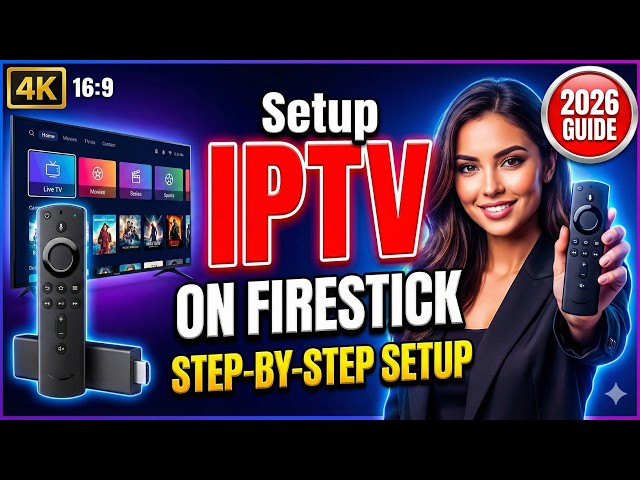
How to Setup IPTV on Firestick: Complete Guide 2026
The Ultimate Firestick Streaming Machine
[TOC]
Setting up IPTV on your Amazon Fire TV Stick is one of the fastest and most cost-effective ways to unlock a world of live TV, sports, and on-demand content in 2026. While traditional cable continues to rise in price and drop in flexibility, the combination of a Firestick and a premium IPTV service delivers exactly what modern viewers want: everything, everywhere, in 4K, for a fraction of the cost.
With the right setup, you can stream thousands of channels in HD and 4K, watch major global events like the 2026 World Cup, and access content from every corner of the globe — all from a device that fits in the palm of your hand and costs less than a pair of shoes.
BUTTON GET YOUR ISCREENHD IPTV PLAN NOW
What Is IPTV and Why Use It on Firestick?
IPTV (Internet Protocol Television) allows you to stream TV channels over the internet instead of traditional, hardware-dependent methods like cable, satellite, or terrestrial antennas. It treats television just like Netflix or YouTube — data packets sent to your device in real-time.
Why Firestick + IPTV is a Powerhouse Duo
The combination of Amazon hardware and IPTV software offers several major advantages. First, it provides incredible flexibility — you can go from unboxing a new Firestick to watching a live 4K football match on the ISCREEN HD IPTV service in USA and Canada in under 10 minutes.
Furthermore, the portability is unmatched, allowing you to watch your home country's channels whether you are in a London apartment, a Tokyo hotel, or a villa in Spain. For other devices, see our supported devices page or the Apple TV IPTV setup guide.
Why Firestick Is the #1 Choice for IPTV in 2026
The Amazon Fire TV Stick remains the undisputed king of IPTV devices for several key reasons:
1. The Sideloading Advantage
Unlike Apple TV or Roku, the Firestick allows "sideloading" — the ability to install applications directly from APK files. This is critical because many of the world's best IPTV players (like TiviMate) are not allowed on official app stores due to licensing complexities. On a Firestick, you can install any app you want in seconds.
2. High-End Decoding for the Price
Even the budget-friendly Firestick 4K models include dedicated hardware decoders for HEVC (H.265) and AV1. This means the device doesn't "work hard" to play a 4K stream; it uses specialized chips to handle the video, keeping the UI fast and the device cool during 5-hour watch sessions.
3. Portability
A Firestick works on any TV with an HDMI port. You can take your entire 50,000+ channel library in your pocket when you travel, and as long as you have Wi-Fi, your setup remains identical to how it is at home.
4. Alexa Integration
Searching for content or switching apps using voice commands via the Alexa remote is significantly faster than typing with an on-screen keyboard, making the "couch experience" far more relaxed.
Step-by-Step: How to Setup IPTV on Firestick
Follow these six phases carefully to ensure a stable, secure, and high-performance setup.
Phase 1: Enable Apps from Unknown Sources
By default, Amazon blocks apps that aren't in the official store to maintain its curated ecosystem. To install high-performance IPTV players, you must unlock this restriction. First, navigate to the .
(Note: If Developer Options is hidden, go to "About" and click your Firestick's name 7 times to unlock it).
Inside the menu, find as it can improve app stability during long streaming sessions.
Phase 2: Install the "Downloader" App
Since the Firestick doesn't allow you to download files directly from a standard web browser like an iPhone or Mac, you need a bridge tool. We use an app called is enabled; without this, many direct download links from IPTV providers will fail to trigger.
Phase 3: Download Your Preferred IPTV App
With Downloader ready, you can now grab your actual streaming software. Open the Downloader app and click the .
Pro Tip: Always delete the APK file after installation is complete. Firesticks have limited 8GB storage, and keeping old installer files can slow down your system over time.
Phase 4: Connecting Your Subscription
Now that your player is installed, it's time to connect it to your ISCREENHD IPTV service. Launch the newly installed app from your dashboard. You will see several connection options; we strongly recommend selecting the Xtream Codes API. If you have login issues, check IPTV Smarters failed to authorize for quick fixes.
Phase 5: Initial Data Sync
The app will now begin a one-time synchronization process. It is downloading your full channel catalog, movie posters, and TV show descriptions from our high-speed servers. This initial load typically takes between 1 and 3 minutes depending on your internet speed. Please wait for the progress bar to finish to ensure your Electronic Program Guide (EPG) is fully populated. (Having trouble? Read our guide on IPTV EPG not loading).
Phase 6: Start Streaming
Your setup is complete! Navigate to the Live TV section, select a category like "Sports" or "USA Channels," and click a channel to begin. You can now enjoy 50,000+ channels in 4K HDR quality. Remember to use the "Favorites" feature to save your most-watched channels for even faster access next time.
Best IPTV Apps for Firestick in 2026 (Ranked)
⭐ IPTV Smarters Pro — Best for Beginners
If you want an app that "just works" and looks like a professional streaming service, Smarters is the choice. Its interface is very clean, utilizing a familiar 4-grid layout (Live, Movies, Series, Catch-up) that makes it easy for the whole family to use. Key features include multi-screen support, which allows you to watch up to 4 games at once, and Picture-in-Picture mode for multitasking. Smarters is highly optimized for Firestick hardware, using native decoding for 4K streams. It is free to download, with a premium unlock option for those who want advanced customization. Learn more in our detailed IPTV Smarters Plus guide and check out other IPTV Smart Players.
🔥 TiviMate — The Professional's Choice
TiviMate is widely considered the best IPTV player on the planet for power users. It feels exactly like a high-end $500 cable box rather than an app. The interface focuses on a traditional TV guide (EPG) layout with extremely fast channel switching. For advanced users, it offers customizable channel groups, recording support (via external storage), and the most sophisticated EPG management in the industry. While a free version exists, the Premium subscription (~$10/year) is highly recommended to unlock the app's full potential.
⚡ XCIPTV — The Lightweight Champion
If you have an older Firestick (1st or 2nd Gen) or a Firestick Lite, XCIPTV is the best choice because it uses very little RAM. Its minimalist, high-contrast interface is exceptionally easy to navigate with the Firestick remote's D-pad. Despite its small size, it offers solid EPG support and fast initial loading times for large playlists. XCIPTV is completely free, making it a reliable backup player or a primary choice for budget devices.
Internet Requirements for a Buffer-Free Experience
The #1 complaint in IPTV is buffering. 99% of the time, this is a local network issue, not a provider issue. Here are the 2026 standards:
| Quality | Minimum Speed | Recommended Speed |
|---|---|---|
| HD (720p) | 10 Mbps | 20 Mbps |
| Full HD (1080p) | 15 Mbps | 30 Mbps |
| 4K Ultra HD | 30 Mbps | 50 Mbps |
| 4K HDR / Dolby Vision | 45 Mbps | 75 Mbps |
The Secret to Zero Buffering: Ethernet
If you are serious about live sports, do not use Wi-Fi. Buy a $15 Amazon Ethernet Adapter. It plugs into the power port of your Firestick and allows you to run a hardwired cable from your router. This eliminates Wi-Fi interference, which is the primary cause of "random" buffering during big games.
Common Problems & Fixes
❌ Buffering or "Freezing"
- The Fix: Restart your router and Firestick. If it persists, use a VPN. Many ISPs "throttle" IPTV traffic during big sports events; a VPN hides your traffic and bypasses this limit. For deeper troubleshooting during big tournaments, read our World Cup 2026 IPTV streaming tips and NBA Finals guide.
❌ App Not Installing (Parse Error)
- The Fix: This usually means the download was corrupted or you didn't enable "Unknown Sources". Redownload the file and ensure your storage isn't 100% full.
❌ Channels Loading but No Sound
- from the App Store and set the IPTV app to use it as the default player.
Firestick vs Apple TV for IPTV: The 2026 Faceoff
| Feature | Firestick 4K Max | Apple TV 4K |
|---|---|---|
| Performance | ⭐⭐⭐⭐⭐ (A15/A17) | ⭐⭐⭐ (ARM Quad) |
| Price | ~$55 (Excellent Value) | ~$130 (Premium Price) |
| Sideloading | Fully Supported | Not Possible |
| Best App | TiviMate (Best in World) | iPlayTV (Very Good) |
| UI Speed | Fast | Instant / Ultra-Fluid |
| Ecosystem | Amazon / Alexa | Apple / iCloud |
.
BUTTON CHOOSE YOUR IPTV PLAN
Frequently Asked Questions
Q: A: No. If you can follow a recipe or set up a new phone, you can set up IPTV on a Firestick. It takes about 10 minutes following our guide.
Q: A: Using the Firestick and installing apps is 100% legal. The legality of the content depends on your local laws and the specific provider you use. We always recommend using a VPN for privacy.
Q: A: Yes. Our service provides every single World Cup match in 4K with multiple language commentary options. It is the best way to watch the tournament.
Q: A: In 2026, buy the Firestick 4K Max. It has the Wi-Fi 6 support and the extra RAM needed for smooth 4K sports streaming.
Q: A: Most issues are resolved by clearing the app cache (Settings > Applications > Managed Installed Applications > [Your App] > Clear Cache) or restarting the device.
Final Thoughts
Setting up IPTV on a Firestick is the ultimate "life hack" for sports fans and movie lovers in 2026. It is fast, affordable, and provides a level of content choice that traditional cable simply cannot match. By following this guide, you've transformed a small piece of plastic into a 4K powerhouse.
🚀 Ready to start? Get your credentials and start streaming in the next 10 minutes. Our service includes over 50,000 channels with no long-term contracts, native 4K HDR quality, and 24/7 dedicated support to ensure you never miss a moment. Review our available IPTV plans and see why we are considered the best IPTV subscription. If you have questions, visit the FAQ or Contact Support.
BUTTON GET INSTANT ACCESS