
World Cup 2026 IPTV: Why Streams Crash and How to Prepare

When the World Cup 2026 knockout stage begins, viewer excitement peaks. Unfortunately, for many viewers relying on internet streaming (even with premium options like ISCREEN HD IPTV), this is also when their service is most likely to fail if unprepared.
A stream that has worked perfectly during normal broadcasts or even the World Cup group stages might suddenly buffer, freeze, or crash entirely during a major knockout match.
This guide explains exactly why these crashes happen, the difference between your network and a provider's infrastructure, and the practical steps you can take to prepare your IPTV setup before the referee blows the whistle.
Why Knockout Matches Create Concentrated Viewer Demand
During the group stage of a tournament like the World Cup, matches are spread out across the day. The viewer base is distributed among several simultaneous fixtures, meaning no single stream bears the entire weight of the global audience.
The knockout stage changes the equation. As the tournament progresses, the number of matches decreases, but the stakes—and the audiences—grow exponentially. When millions of fans attempt to watch the same live stream at approximately the same time, this creates massive concurrency.
This concentrated demand places enormous strain on the infrastructure serving the stream. If the servers are not equipped for this sudden, massive influx, the stream will inevitably crash.
Why Streams Work Normally but Crash During Big Events
Many users wonder why their service is flawless on a standard weekend but unwatchable during a World Cup quarter-final. The answer lies in server load and bandwidth.
A provider might have sufficient server capacity for normal viewing habits. However, a major sporting event can multiply their normal traffic tenfold. When the provider's servers reach their maximum bandwidth or processing limits, they can no longer deliver video packets smoothly to all connected users, resulting in buffering or complete failure.
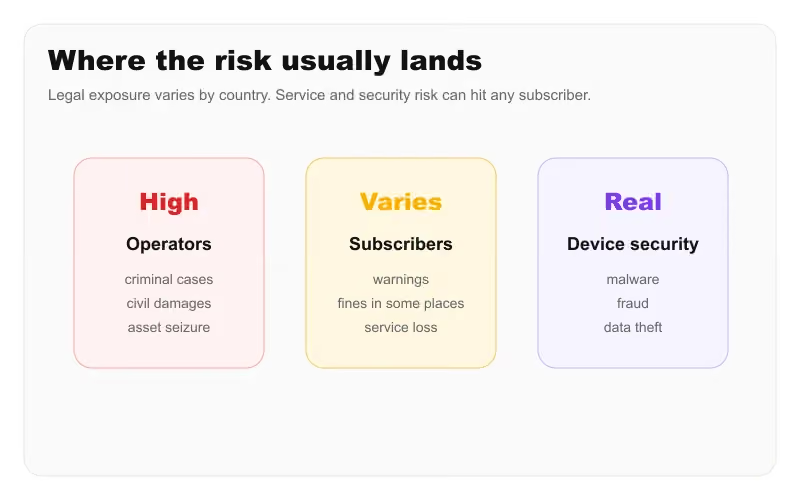 IPTV Buffering and Server Load
Understanding the Difference: Your Network vs. Provider Issues
When your stream freezes, the problem originates from one of two places: your home setup or the provider's infrastructure. It is crucial to understand the difference so you know how to react.
Problems You Can Control (Home Setup)
- Wi-Fi Interference: Using a wireless connection introduces latency and susceptibility to interference from other devices in your home.
- Network Congestion: If other people in your house are downloading large files or streaming 4K movies simultaneously, your live sports stream will suffer.
- Device and Player Issues: IPTV apps can cache errors, or your streaming device (like a Firestick) might run out of memory after being left on for days. Read our Firestick installation guide to optimize performance.
Problems You Cannot Control (Provider Setup)
- Server Capacity: If the provider simply does not have enough servers to handle the viewer count.
- CDN and Load Balancing: Content Delivery Networks (CDNs) distribute traffic globally. If a provider's CDN is poorly optimized, the load isn't balanced efficiently.
- ISP Congestion: Sometimes, the issue isn't you or the IPTV provider, but your Internet Service Provider (ISP) being overwhelmed by neighborhood traffic during a major event.
Issue Control Comparison Table
| Issue | User Control | Provider/Network Control |
|---|---|---|
| Wi-Fi interference | Yes | No |
| Player/app state | Yes | No |
| Home network congestion | Partly | No |
| Server capacity | No | Yes |
| CDN/load balancing | No | Yes |
| ISP congestion | Partly | No |
Early Warning Signs of an Unstable Stream
Reacting to a problem before your screen goes completely black can save your viewing experience. Watch out for these early warning signs that a stream is struggling:
- Repeated Brief Frame Drops: The picture stutters for a fraction of a second every few minutes.
- Pixelation: The video quality suddenly looks blocky, even though the audio remains clear.
- Temporary Quality Reductions: The stream drops from high definition to standard definition on its own.
- Increasing Playback Delays: You notice you are significantly behind live time (e.g., you hear your neighbors cheering 30 seconds before a goal happens on your screen).
If you notice these signs, it is time to prepare a backup rather than waiting for a complete freeze.
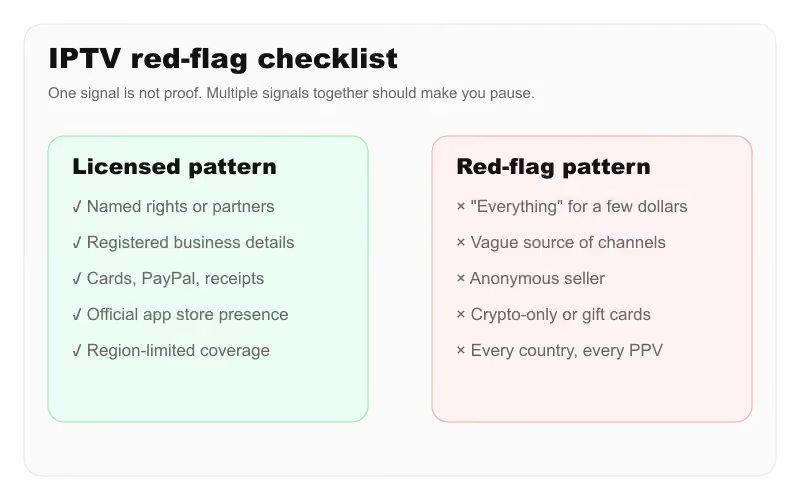 Troubleshooting Red Flags
Step-by-Step: What to Do When a Stream Freezes Live
If the worst happens and your stream stops during a live match, do not panic. Follow these steps in order for the fastest possible recovery:
- Try another available source: If your service provides multiple sources for the same channel (e.g., Channel HD 1 and Channel HD 2), switch to the alternate source immediately. Having the best IPTV player for 4K streaming helps manage multiple sources seamlessly.
- Switch to a prepared backup device: If you have a secondary device (like a tablet or phone) ready, try streaming from it.
- Test another network connection: If possible, switch from Wi-Fi to a mobile hotspot to see if your home network is the bottleneck.
- Reduce video quality: If your IPTV player allows it, drop the resolution from 4K to 1080p, or 1080p to 720p to reduce bandwidth demand.
- Restart the IPTV application: Completely close the app and reopen it to clear any player-side cache errors.
- Restart the router (Last Resort): Only do this if you have evidence that your home network is the problem. Rebooting a router takes several minutes, meaning you will definitely miss parts of the match. Do not make this your first step.
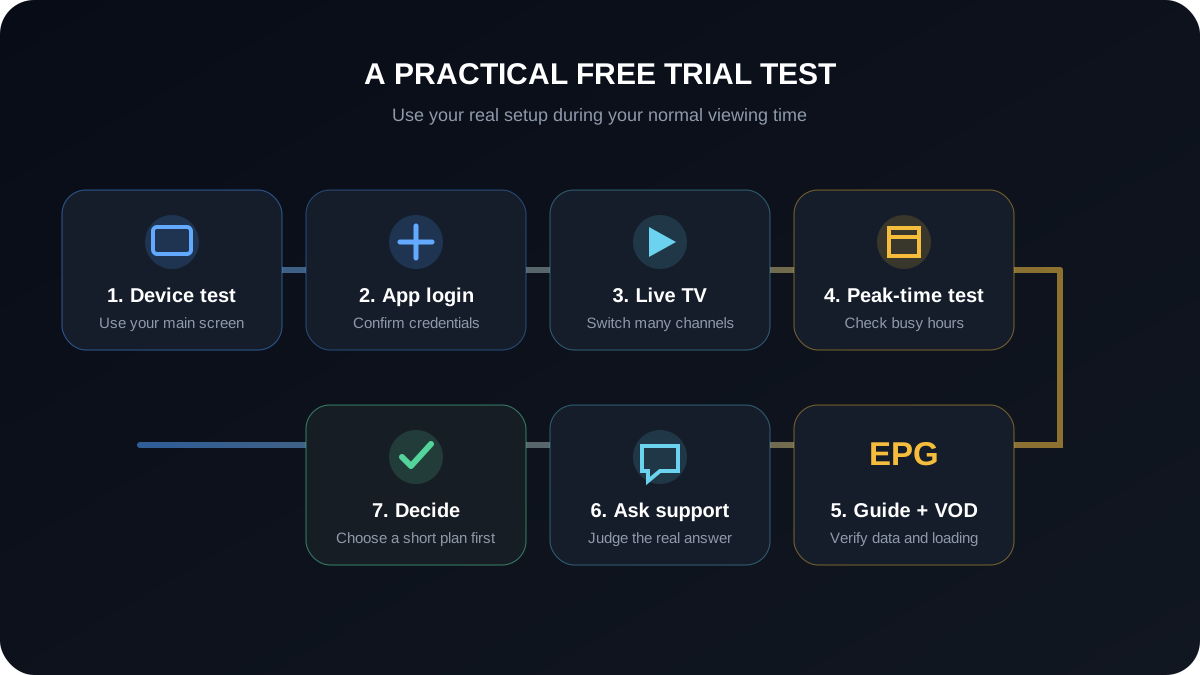 IPTV Preparation Flowchart
The World Cup 2026 Preparation Checklist
Do not wait until five minutes before kickoff to realize your setup isn't working. Follow this preparation checklist:
Several days before:
- Test the service during a busy live sporting event (like a major weekend league match) to gauge peak-time performance.
The day before:
- Prepare a backup device (install the app, log in, and ensure it works).
- Review our guide on choosing a reliable IPTV provider to ensure your current service meets basic standards.
A few hours before kickoff:
- If possible, connect your streaming device directly to your router using an Ethernet cable instead of Wi-Fi.
- Close unnecessary background applications on your streaming device.
- Ensure no large downloads or updates are running on your home network. You can explore more IPTV FAQs for network optimization tips.
Around 30 minutes before kickoff:
- Open the channel you intend to watch.
- Confirm the stream is stable and check the picture quality.
During the match:
- Avoid making unnecessary changes if the stream is stable.
- If degradation appears, act early using the troubleshooting steps above.
For more detailed troubleshooting regarding specific devices, check out our guide on IPTV apps.
 Device Setup Guide
Evaluating an IPTV Provider’s Infrastructure
When choosing an IPTV service, infrastructure matters more than an inflated channel count. A reliable provider utilizes global servers across a robust CDN to distribute viewer demand efficiently. Learn how to choose a reliable IPTV provider.
However, it is important to acknowledge realistic limitations: no provider can guarantee zero buffering under every circumstance. The internet is a dynamic network, and uncontrollable factors like localized ISP outages can always occur.
If you're considering ISCREENHD IPTV service in USA and Canada for major sporting events, evaluate the service by testing the channels you intend to watch during busy viewing periods before relying on it for an important match. You can review our available pricing and plans or explore our features to see if our infrastructure aligns with your needs. To understand what goes into a top-tier service, see which IPTV service works best.
Frequently Asked Questions (FAQ)
Major matches cause a massive spike in concurrent viewers. If the provider's servers cannot handle this concentrated demand, the stream will buffer or crash, regardless of how well it works on quiet days.
If other devices in your home are experiencing slow internet, or if a speed test shows low bandwidth, the issue is likely your connection. If your internet speed is high but the stream still buffers, it is likely a provider-side server issue.
What internet speed do I need for live sports streaming? Generally, you need a stable 15-20 Mbps connection for smooth 1080p HD streaming, and 25-30 Mbps for 4K streaming. Stability (low latency and no packet loss) is often more important than raw speed.
Should I use Ethernet instead of Wi-Fi? Yes. Ethernet provides a direct, stable connection free from the wireless interference that often causes micro-stutters during live sports.
What should I do if my IPTV stream freezes during a match? First, try an alternate channel source if available. Next, switch to a backup device or lower the video quality. Only restart your router as a last resort.
Should I have a backup device? Absolutely. Having a secondary device like a tablet or laptop ready can save your viewing experience if your primary device or app fails.
Can an IPTV provider guarantee zero buffering during the World Cup? No. While premium providers invest heavily in infrastructure to minimize disruptions, the unpredictable nature of the internet means no service can guarantee a 100% flawless experience.
How can I test my IPTV setup before a major match? Tune into another high-profile live sporting event (like a weekend derby match) during peak hours. If your setup handles that smoothly, it is better prepared for the World Cup. For more questions, visit our FAQ page.
Final Thoughts
Watching the World Cup 2026 knockout stages should be thrilling, not frustrating. By understanding why streams crash under heavy load and taking proactive steps to optimize your home network, you can significantly reduce the chances of missing a crucial goal.
Remember to prepare early, use an Ethernet connection where possible, and always have a backup plan ready. If you need further assistance with your setup, feel free to reach out via our contact page.