
IPTV EPG Not Loading: 8 Common Causes and Fixes
What Is an IPTV EPG?
EPG stands for Electronic Program Guide.
It provides program information associated with your IPTV channels.
Depending on the IPTV service and player, an EPG can show:
- Current programs
- Upcoming programs
- Program titles
- Program descriptions
- Start and end times
- Channel information
The exact information available depends on the EPG data supplied by your legitimate IPTV service.
If the channels themselves work but the guide is empty, the problem may be limited to the EPG configuration.
8 Common Causes of IPTV EPG Not Loading
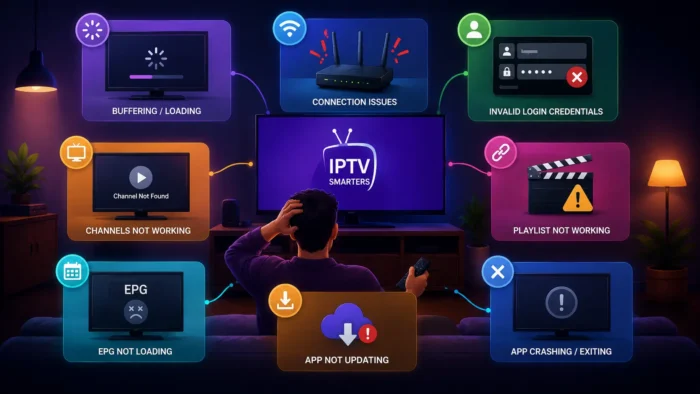
1. The EPG URL Is Incorrect
One of the most common causes is an incorrect EPG URL.
If your IPTV player uses a separate EPG source, the URL must be entered correctly.
A single missing character can prevent the guide from loading.
Check:
- EPG URL
- Spelling
- HTTPS or HTTP if applicable
- Missing characters
- Extra spaces
- Playlist-to-EPG configuration
Use the EPG information supplied by your legitimate IPTV service.
Do not replace it with a random URL from an unknown website.
2. The EPG URL Is No Longer Available
Even when the URL was entered correctly, the EPG source itself may temporarily be unavailable or may have changed.
If the EPG suddenly stops working after previously working normally, check whether the service has provided updated EPG information.
Possible reasons include:
- EPG source changed
- Temporary server problem
- Expired source
- Service-side configuration change
If you're using ISCREEN HD IPTV, we ensure stable EPG data across our servers.
 Check EPG URL
3. The Playlist and EPG Are Not Properly Matched
An EPG source needs to correspond to the channels in the playlist.
If the channel identifiers do not match correctly, the player may load the EPG data but fail to associate it with your channels.
This can result in:
- Empty program information
- Some channels showing data while others do not
- Incorrect program information
- Missing guide entries
If your IPTV player provides channel mapping or EPG assignment settings, review them carefully. Review our IPTV pricing and plans to make sure you have the right subscription tier for EPG access.
4. The EPG Has Not Been Refreshed
Some IPTV players do not immediately refresh guide information.
If the application has not updated its EPG data recently, the guide may appear empty or outdated.
Look for options such as:
- Refresh EPG
- Update EPG
- Reload guide
- Clear EPG data
After refreshing, give the application enough time to download the guide information.
 Refresh IPTV EPG
5. Incorrect Time Zone or Device Time
An incorrect device time zone can make EPG information appear at the wrong time.
For example, programs may appear several hours earlier or later than expected.
Check:
- Device date
- Device time
- Time zone
- Automatic date and time
- Automatic time zone
If your Android TV or streaming device supports automatic time and time-zone settings, enabling them can help prevent incorrect scheduling information. If you are using a Firestick, you can adjust these in your device settings as outlined in our Firestick Setup Guide.
 Fix EPG Time Zone
6. Corrupted EPG Cache
Your IPTV application may store EPG data locally.
If this cached information becomes corrupted, the guide may stop displaying correctly.
Try:
- Close the IPTV application.
- Open the device's application settings.
- Find the IPTV player.
- Clear the application cache.
- Reopen the application.
- Refresh the EPG.
Start with Clear Cache rather than Clear Data.
Clearing application data may remove saved playlists, credentials, and preferences, which could cause a failed to authorize error if you don't have your login details handy. See our supported devices guide for more on specific apps.
7. The IPTV Player Has a Temporary Problem
Sometimes the EPG problem is specific to the IPTV application.
The same playlist may display EPG information correctly in another compatible player.
If possible, test the playlist using another legitimate IPTV player. We recommend checking out our list of the best IPTV players for 4K streaming to find a reliable alternative.
If the EPG works there, the original application's configuration or compatibility may be responsible.
If it fails everywhere, investigate the EPG source or service configuration instead.
8. The EPG Data Is Temporarily Unavailable
Sometimes the issue is outside your device.
The EPG provider or IPTV service may be experiencing a temporary problem.
This can happen even when live channels continue working.
Signs of a service-side EPG issue include:
- EPG suddenly disappears
- Multiple devices show the same problem
- Channels continue playing normally
- Refreshing the guide does not help
- The same EPG source fails in another player
If this happens, check the service's official support information. If you're an ISCREENHD IPTV service in USA and Canada customer, contact us for help.
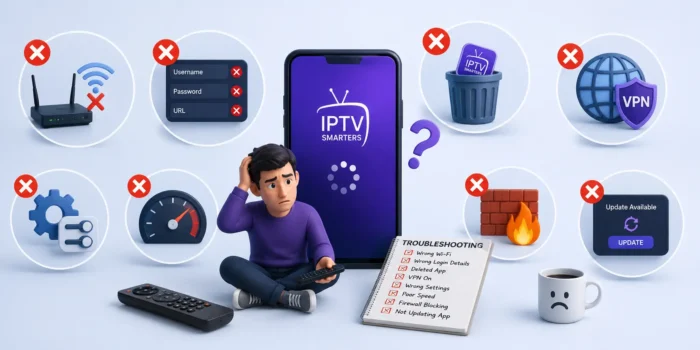
IPTV EPG Troubleshooting Table
| EPG Problem | What to Check |
|---|---|
| EPG completely empty | EPG URL and source |
| EPG stopped suddenly | Service or EPG source availability |
| Only some channels have EPG | Channel-to-EPG mapping |
| EPG shows old information | Refresh EPG |
| Program times are incorrect | Device time zone |
| EPG fails after app update | App cache and settings |
| EPG works in another player | Original player configuration |
| EPG fails everywhere | EPG source or service-side issue |
How to Refresh IPTV EPG Data
The exact process depends on the IPTV player.
In many applications, such as IPTV Smarters Plus, you can find an option similar to:
Settings → EPG → Refresh / Update
Some applications automatically update the guide at regular intervals.
After starting an EPG refresh:
- Wait for the update to finish.
- Return to the channel list.
- Open the program guide.
- Check several channels.
- Verify that current and upcoming programs are displayed.
Do not repeatedly refresh the guide if the EPG source itself is unavailable.
What If IPTV Channels Work but EPG Does Not?
This is an important distinction.
If your channels play normally but the EPG is empty, your internet connection is probably not the only thing to investigate.
Focus on:
- EPG URL
- EPG source
- Channel mapping
- EPG refresh
- Time zone
- Application cache
- IPTV player compatibility
The channel stream and EPG data can be separate components.
Therefore, a working channel does not guarantee that the EPG source is working.
What If the EPG Shows the Wrong Time?
If the guide loads but program times are incorrect, check your device's:
- Date
- Time
- Time zone
- Automatic time settings
Also check whether the EPG source uses a different time configuration.
Do not immediately replace the EPG URL if the only problem is an incorrect time display.
Should You Change the EPG URL?
Only change the EPG URL if you have a valid reason to do so.
For example, your legitimate IPTV service may provide an updated EPG URL.
Avoid using random EPG sources from unknown websites.
An incorrect replacement can create additional problems and may expose your device to untrusted content.
Should You Clear IPTV App Data?
Usually, clearing the cache should be attempted first.
Clear Data is a more aggressive troubleshooting step because it can reset the application.
Before using it, make sure you have access to:
- Playlist URL
- Username
- Password
- Server information
- EPG URL
- Personal application settings
After clearing data, you may need to configure the application again.
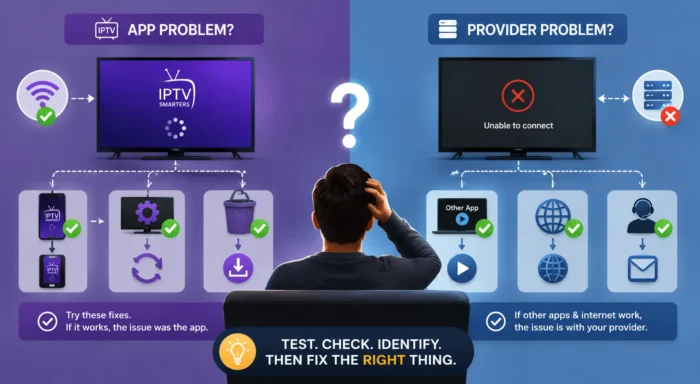
How to Determine Where the EPG Problem Is
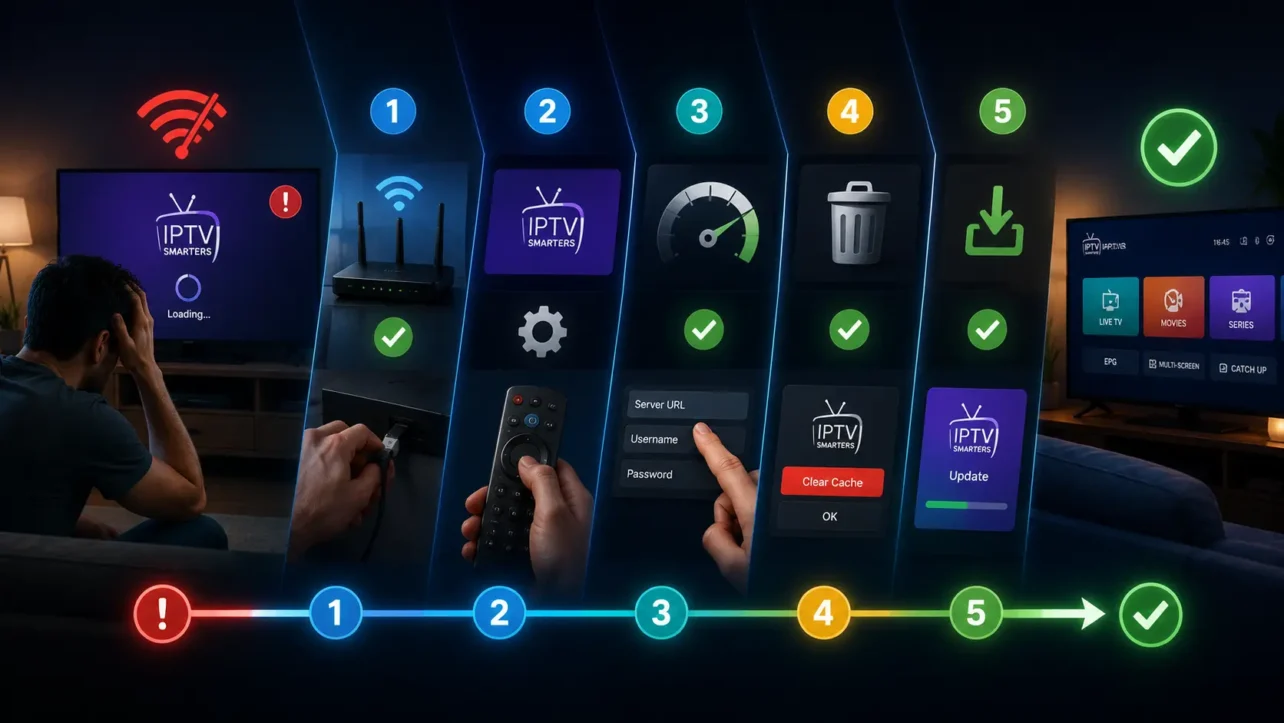
The fastest troubleshooting method is to isolate the problem.
Step 1: Check the channels
If channels do not work either, investigate the IPTV connection separately.
Step 2: Check the EPG
If channels work but EPG does not, focus on EPG settings.
Step 3: Check another channel
If only certain channels are missing guide data, channel mapping may be involved.
Step 4: Refresh the guide
Force an EPG update if your player supports it.
Step 5: Test another compatible player
This can help determine whether the problem is application-specific.
Step 6: Check the service
If the EPG fails on multiple devices and applications, the source may be unavailable.
Frequently Asked Questions
Why is my IPTV EPG not loading?
Common causes include an incorrect EPG URL, unavailable EPG source, incorrect channel mapping, outdated guide data, incorrect time zone, corrupted cache, or an IPTV player problem.
Why do IPTV channels work but the EPG does not?
The channel streams and EPG data can come from separate sources. Your channels can therefore continue working while the program guide has a separate problem.
How do I refresh my IPTV EPG?
Open your IPTV player's EPG or guide settings and look for an option such as Refresh EPG, Update EPG, or Reload Guide.
Why does my IPTV EPG show the wrong time?
Check the date, time, and time-zone settings on your streaming device. Incorrect device settings can cause guide schedules to appear at the wrong time.
Can an IPTV app update break the EPG?
Yes. An application update can change settings or introduce compatibility issues. Check the application's configuration and clear its cache if necessary.
Why does EPG work in one IPTV player but not another?
The applications may handle EPG sources, channel mapping, caching, or XML-based guide data differently. If it works in another player, investigate the original player's configuration.
Should I use a different EPG URL from the internet?
Use the EPG source supplied by your legitimate IPTV service whenever possible. Avoid unknown third-party sources. See legal vs illegal IPTV and how to choose a reliable IPTV provider for more context.
Can clearing the cache fix IPTV EPG problems?
It can help if the application's cached EPG information has become corrupted or outdated. Try clearing the cache before clearing all application data.
Conclusion
An IPTV EPG that is not loading does not necessarily mean that your IPTV channels are broken.
Start with the basics: verify the EPG URL, check the playlist and EPG mapping, refresh the guide, and confirm that your device has the correct date and time-zone settings.
If the problem continues, clear the application's cache and test the same playlist in another compatible IPTV player.
If the EPG fails across multiple devices and applications while your channels continue working, the problem may be related to the EPG source or service itself. Check out which IPTV service works best and our FAQ page to resolve persistent issues.
Troubleshooting the problem one step at a time makes it much easier to identify whether the issue comes from your device, IPTV player, EPG configuration, or the service providing the data.
 IPTV EPG Troubleshooting