IPTV Smarters Plus: The Ultimate Expert Guide for 2026
What No One Tells You About IPTV Players
Most IPTV guides explain what to install. None explain why it doesn't work for you.
The truth: your application is often the weakest link. A poor player transforms an excellent subscription into a frustrating experience — buffering, slow interface, degraded image. You're paying for a premium service that you aren't fully consuming. If you want to explore alternatives, check out our guide on the best IPTV players for 4K streaming.
IPTV Smarters Plus fixes exactly this problem. As a top choice for the IPTV Smart Player on ISCREENHD, this guide covers everything — from a 4-minute installation to advanced configurations that even technicians ignore. If you encounter login issues later, refer to our guide on fixing IPTV Smarters failed to authorize errors.
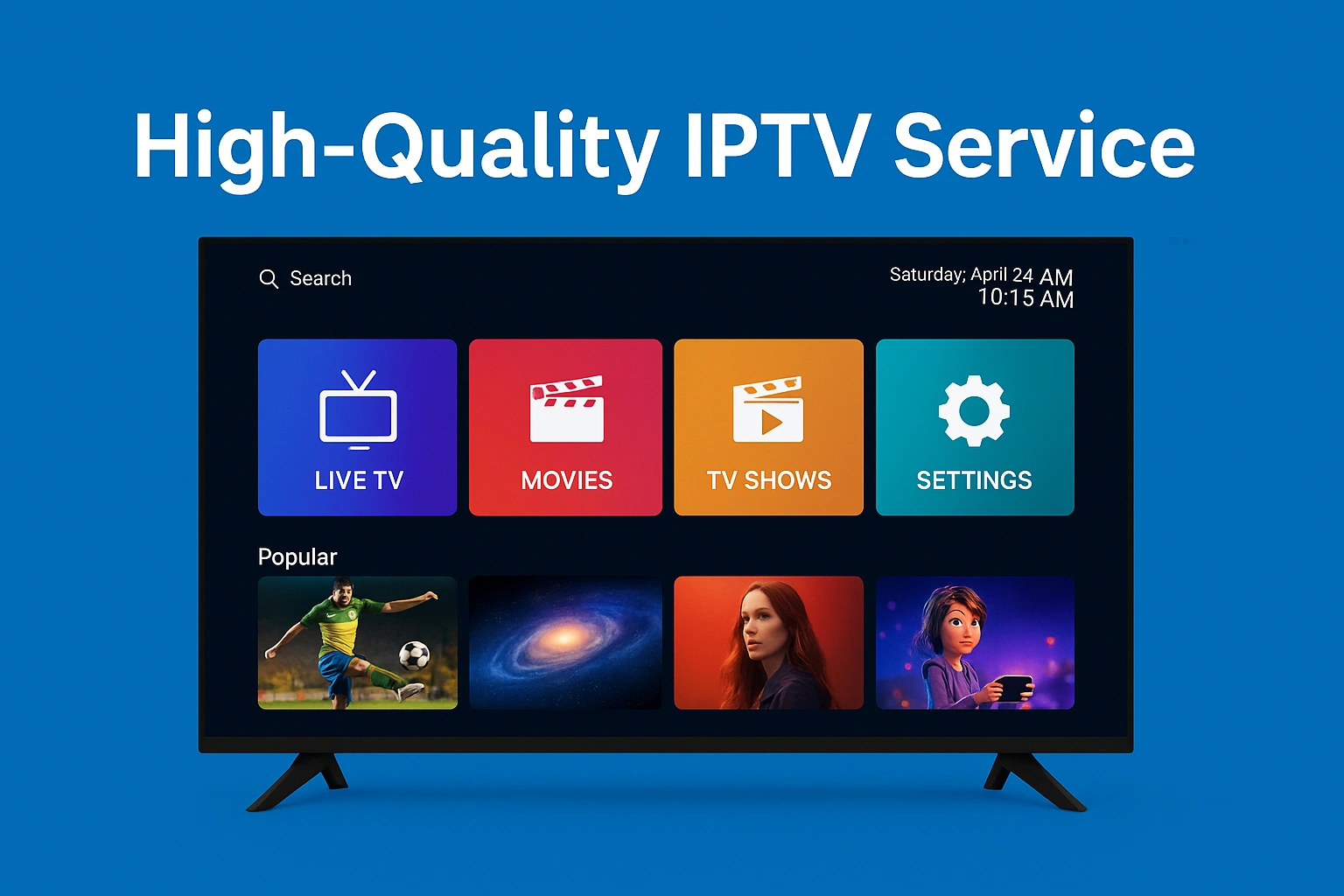
High-Quality IPTV Service
What is IPTV Smarters Plus — Really?
It is a next-generation media player, designed exclusively for IPTV streams. The distinction is fundamental: VLC and Kodi are general-purpose players adapted for IPTV by the community. Smarters Plus, however, was architected for this specific use case from the very first line of code.
What this means in practice: native management of HLS and MPEG-TS protocols, optimized hardware decoding for ARM devices (Fire Stick, Android TV), and an interface that anticipates the needs of an IPTV user — program guides, catch-up, multi-profiles, everything is there from the first launch.
The Two Connection Protocols Explained
Xtream Codes API — The industry-standard protocol. Your provider gives you three pieces of information: a server URL, a username, and a password. The app queries the server, retrieves your full catalog, and keeps it updated automatically. If your provider adds 500 channels tomorrow, they appear in your list without any action on your part.
M3U Playlist — A text file containing direct links to each channel. Easier to understand but less robust: if the server changes a URL, you must manually update your file. Suitable for temporary setups or testing.
For daily and professional use, Xtream Codes is the only serious option. This is the standard protocol used by ISCREEN HD IPTV in standard, which is widely recognized as a premium ISCREENHD IPTV service in USA and Canada.
Advanced Features in Detail
Multi-Screen: Watch 4 Streams Simultaneously
Multi-screen mode divides your display into 4 independent zones, each broadcasting a different stream. The obvious use case: the 2026 World Cup, with 4 simultaneous matches on a single television.
But the applications go much further. A trader can monitor 4 financial news channels. A family can watch different content on the same screen shared with individual headphones. The feature is underrated — it redefines what "watching TV" means.
Electronic Program Guide (EPG): Plan Like a Pro
Smarters Plus's EPG is synchronized in real-time with your provider. It's not just a schedule display — it's a complete planning tool.
The EPG offers several key functionalities that go beyond basic channel listings. You can access a full 7-day advance view for all channels, set program start reminders via device notifications, and filter content by specific genres such as sports, movies, news, and series. There is also an instant search feature that allows you to find content by title or actor in seconds.
What most users don't know: by correctly configuring the EPG URL provided by iscreenhd IPTV, you get enriched metadata — synopses, critic ratings, movie posters. The interface transforms from a simple TV guide into an experience close to Netflix. If your guide is empty, learn how to fix it with our IPTV EPG not loading troubleshooting steps.
Catch-up TV: Never Miss a Thing
IPTV catch-up works differently than your ISP box's replay. Here, the last 7 days of broadcasting are stored server-side. You access any past program directly from the EPG — click on a previously aired program, and it starts immediately.
Real-world use case: a Champions League match took place at 9 PM. You get home at 11 PM. With two clicks in the Smarters Plus EPG, you watch the match from the beginning, with the same quality as the live broadcast.
External Player Support
Smarters Plus can delegate playback to an external player — VLC, MX Player, or any player installed on your device. This becomes useful in two specific cases:
- Advanced Subtitles: MX Player handles subtitle formats that Smarters doesn't natively support.
- Codec Compatibility: On older devices, some codecs aren't hardware-accelerated in Smarters. Redirecting to VLC can resolve performance issues.
This isn't a limitation — it's an open architecture that adapts to your ecosystem.
Quick Installation Guide — No Technical Skills Required
Setting up the application is designed to be as simple as possible, even for those who aren't tech-savvy. First, you need to download the app; it is available directly through the Play Store or App Store for mobile devices, or via the official website for APK files if you are using a Fire Stick or Android Box. Once downloaded, open the application and select the "Add New User" option, then choose the Xtream Codes API method.
Next, you will need to enter your iscreenhd IPTV credentials—specifically the server URL, your username, and your password. These three pieces of information are sent to your email immediately after your subscription is activated. Once you confirm the details, simply wait 15 to 30 seconds. Your entire catalog of live channels, movies, and series will load automatically. There is no complex network configuration required, no ports to open, and no mandatory VPN needed to get started.
Real-World Use Cases
Watching the 2026 World Cup on Smart TV
Your Smart TV doesn't have Smarters Plus in its native store? No problem. Plug an Amazon Fire Stick 4K Max into an available HDMI port — it's less than $60 and transforms any TV into a state-of-the-art IPTV terminal. Check our complete guide on how to setup IPTV on Firestick for step-by-step instructions. Install Smarters Plus via the "Unknown Sources" option, enter your iscreenhd IPTV credentials, and watch all 104 World Cup matches in 4K HDR from your couch without World Cup streams crashing.
The Fire Stick 4K Max supports Wi-Fi 6 — if your router is compatible, you'll benefit from a more stable and faster connection than many Ethernet cables.
Mobile Use on the Go
When traveling, your smartphone becomes your primary screen. Smarters Plus on iOS and Android keeps your favorites, history, and settings synchronized. Open the app on a train, in a hotel, or at an airport — your channel list is there, identical to the one in your living room.
Pro Tip: on 4G/5G, set the quality to "SD" or "HD" in the stream settings to save data. The quality remains excellent, and buffering is virtually non-existent even with an unstable signal.
Family Use on Multiple Devices
A family of 4 with a iscreenhd IPTV multi-connection plan can use Smarters Plus simultaneously on:
- The main TV (via Fire Stick)
- The parents' bedroom (via Android Box)
- The kids' tablet
- The laptop for working from home with a news channel in the background
Each profile in the app keeps its own favorites and history. No interference, no conflict of preferences.
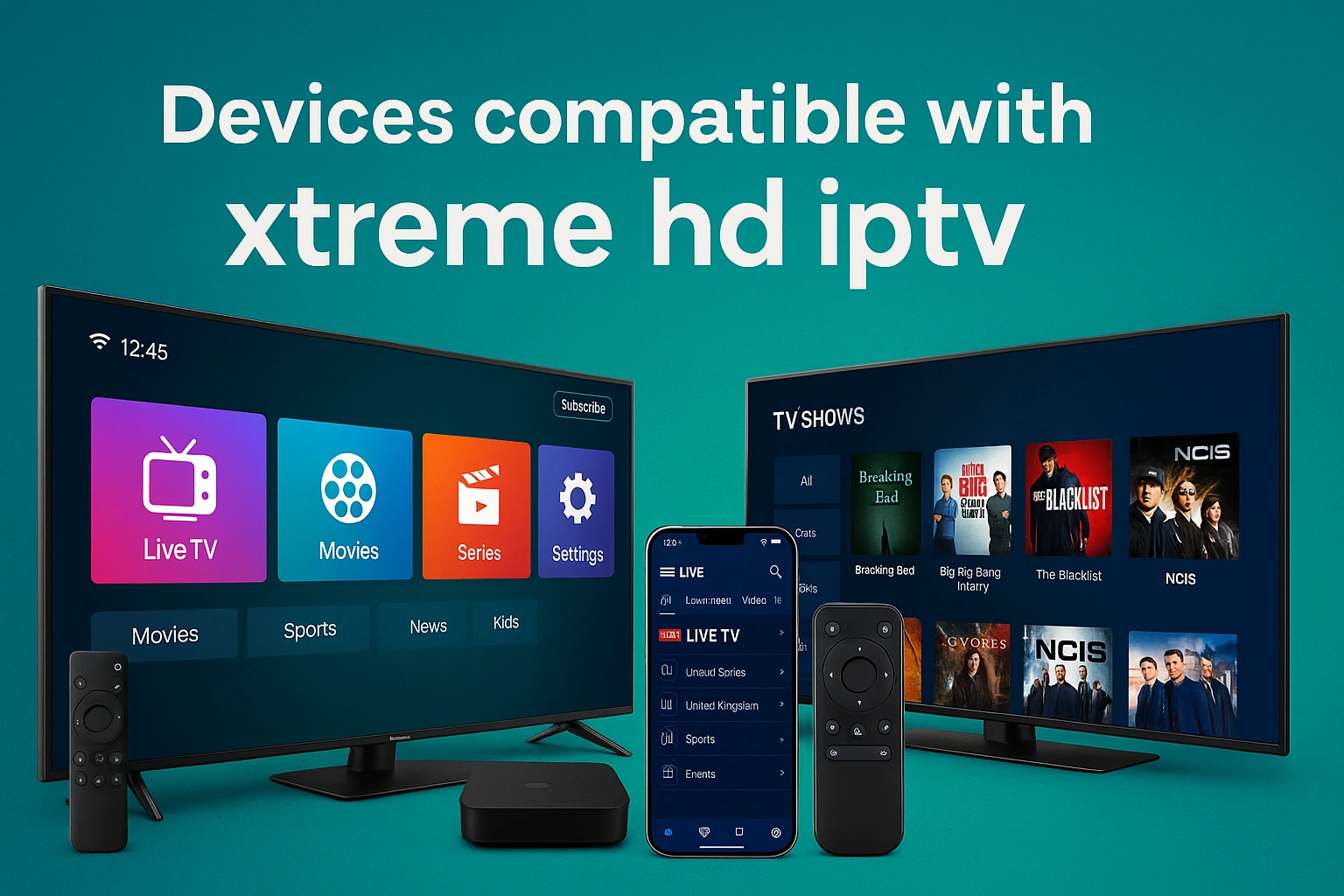 Compatible IPTV Devices
Performance and Streaming Quality
What Really Causes Buffering
Buffering isn't always due to your internet connection. The real causes, in order of frequency:
- Server Overload — your provider has too many users for too little bandwidth. Choosing ISCREEN HD IPTV means choosing an infrastructure capable of handling traffic peaks during major events. You can review all available plans to find the best fit.
- Unstable Wi-Fi — a Wi-Fi signal at -75 dBm will always be less reliable than a wired connection, even at 100 Mbps.
- Software Decoding — if your device decodes the H.265 stream via software instead of using the hardware video chip, the CPU heats up and lags. Smarters Plus automatically enables hardware acceleration if available.
- Misconfigured Buffer — the app allows you to adjust the buffer from 0 to 10 seconds. On an unstable connection, 3 to 5 seconds of buffer absorb micro-cuts with no visible impact.
Actual Speeds You Need
| Quality | Minimum Speed | Recommended |
|---|---|---|
| SD (480p) | 3 Mbps | 5 Mbps |
| HD (720p) | 5 Mbps | 8 Mbps |
| Full HD (1080p) | 8 Mbps | 12 Mbps |
| 4K UHD (H.265) | 15 Mbps | 25 Mbps |
| 4K HDR (AV1) | 10 Mbps | 18 Mbps |
Important Note: The AV1 codec — supported by Smarters Plus — reduces the bandwidth needed for 4K by 40% compared to H.264. If your connection is limited to 20 Mbps, you can still enjoy 4K quality with AV1 enabled.
HD vs Full HD vs 4K — The Real Difference
HD (720p): Perfect for screens under 42 inches or mobile use. On a smartphone, you won't see the difference compared to Full HD.
Full HD (1080p): The ideal format for most uses. On a 55-inch screen at a normal distance, it's visually indistinguishable from 4K for 99% of content.
4K UHD (2160p): The difference is visible starting from 65 inches, sitting less than 3 meters from the screen, on content natively filmed in 4K (not upscaled). For football matches — with the speed of movement and grass details — 4K brings real added value.
Frequent Errors to Avoid at All Costs
Incorrect Login Format
The most common error: copy-pasting the server URL with a space or invisible character at the end. Result: "Connection Refused" despite correct credentials. Always type manually or check for spaces after pasting.
Another error: confusing the port in the URL. If your server is and wonder why it doesn't work.
Poor Wi-Fi Configuration
Connecting a Fire Stick to 2.4 GHz Wi-Fi in an urban apartment with 30 active neighboring networks is a guarantee of buffering. The solution: either switch to 5 GHz Wi-Fi (shorter range but much higher stability) or use an Ethernet adapter for Fire Stick (less than $15). The difference in stability is radical.
Choosing an IPTV Provider at Random
The application is flawless. If your IPTV provider is hosted on a cheap shared server, you will have cuts, especially during popular matches. The rule: choose a service that explicitly guarantees stability during major sporting events, with its own infrastructure and responsive support. To avoid bad services, read our guide on how to choose a reliable IPTV provider without getting scammed.
Ignoring App Updates
IPTV Smarters Plus is regularly updated to fix decoding flaws and optimize performance. Keeping an obsolete version means missing out on significant improvements — especially regarding support for new video codecs.
IPTV Smarters Plus vs. Competing Apps
| Criteria | Smarters Plus | TiviMate | Smart IPTV |
|---|---|---|---|
| Price | Free | Freemium ($8/yr) | Paid ($6) |
| Interface | Modern & Fast | Excellent | Basic |
| Catch-up TV | Native | Yes (Premium) | No |
| Multi-profiles | Yes | No | No |
| External Player | Yes | Yes | No |
| Native Smart TV | No | No | Yes (LG/Samsung) |
| 4K Stability | Excellent | Excellent | Decent |
| Active Support | Yes | Yes | Limited |
, free and actively maintained. (If you are an Apple user, you might want to check our dedicated Apple TV IPTV setup guide instead).
Expert Tips for the Best Experience
Use a Wired Connection Whenever Possible
An Ethernet cable eliminates 80% of buffering problems in one go. If your router is far away, a Powerline Adapter (CPL) transmits your connection via your home's electrical cables — no network cables to run, and performance close to wired.
Optimize Decoding Settings
In Smarters Plus Settings → Player, enable "Hardware Decoder" if your device supports it. On recent Fire Sticks and Android Boxes, this reduces CPU consumption by 60% and eliminates overheating issues during long sessions.
Create Smart Favorites Lists
Instead of scrolling through 50,000 channels every time, create favorite groups in Smarters Plus: "Live Sports", "Current Series", "News Channels". You access your usual content in 2 taps instead of 20.
Test Your Provider's Quality Before Major Events
48 hours before an important match, test your stream at the same time. If you notice buffering outside peak hours, it's a signal that your provider is under-provisioned. Switch services before kickoff, not during.
 Premium IPTV Streaming
Comparison of IPTV Services
| Feature | iscreenhd IPTV + Smarters Plus | Cable / Satellite | Generic IPTV |
|---|---|---|---|
| Max Quality | Native 4K HDR | Standard HD | Variable |
| Number of Channels | 50,000+ | 200–500 | 1,000–5,000 |
| Flexibility | All Devices | Imposed Decoder | Limited |
| Catch-up TV | 7 days included | Per operator | Rare |
| Tech Support | 24/7 WhatsApp | Business hours | Often absent |
FAQ
Q: Do I need technical knowledge to set up Smarters Plus? A: No. If you can type a password and press "Confirm", you can configure the app in under 5 minutes. This guide covers every step precisely.
Q: What internet speed do I actually need for 4K? A: With the HEVC (H.265) codec, 15 Mbps is enough for stable 4K. With AV1, you can go as low as 10 Mbps. For smooth Full HD, aim for a minimum of 8 Mbps. If you fall below these thresholds, switch the stream quality to HD in the app settings.
Q: Can I use one subscription on multiple devices at the same time? A: It depends on your plan. ISCREENHD IPTV service offers 1, 2, and 4 simultaneous connection plans. For a family of 4, the 4-connection plan is the optimal choice. Explore our IPTV pricing and plans for more details, or read our best IPTV subscription guide to see why we stand out.
Q: Does the app work on my Samsung Smart TV without a Fire Stick? A: Samsung Tizen Smart TVs do not support Android APKs. The recommended solution is a Fire Stick (plugged into an HDMI port) or an Android Box. Smart IPTV is an alternative if you refuse any extra hardware — but its features are significantly more limited.
Q: What happens if my channel list changes after a server update? A: With Xtream Codes, the sync is automatic every time you launch the app. You won't lose any channels or favorites, even during major provider updates.
Q: Is Catch-up TV available on all channels? A: No — it depends on which channels your provider archives on their server. Premium sports and movie channels are generally covered. Local or regional channels may not be. iscreenhd IPTV documents replay availability in its catalogue.