
What Internet Speed Do You Need for IPTV in 2026? Complete Guide
When switching to live television streaming, one fundamental question always comes up first: how much internet speed do I need for IPTV? Viewers expect instant channel switching, smooth live sports, and crisp playback, but many encounter unexpected freezing even on high-speed broadband connections.
Real-world IPTV internet speed requirements depend on stream resolution, broadcast bitrate, network stability, Wi-Fi performance, device hardware, and concurrent household downloads.
Crucially, there is a major difference between your advertised internet speed and the actual available bandwidth on your IPTV device. An ISP plan advertising 200 Mbps measures speed delivered to your router. By the time that signal travels through walls to a streaming stick behind your TV, available throughput may drop drastically.
Understanding how bandwidth, stream stability, and home hardware interact helps you choose the best internet speed for IPTV without overpaying for unused capacity.
How Much Internet Speed Do You Need for IPTV?
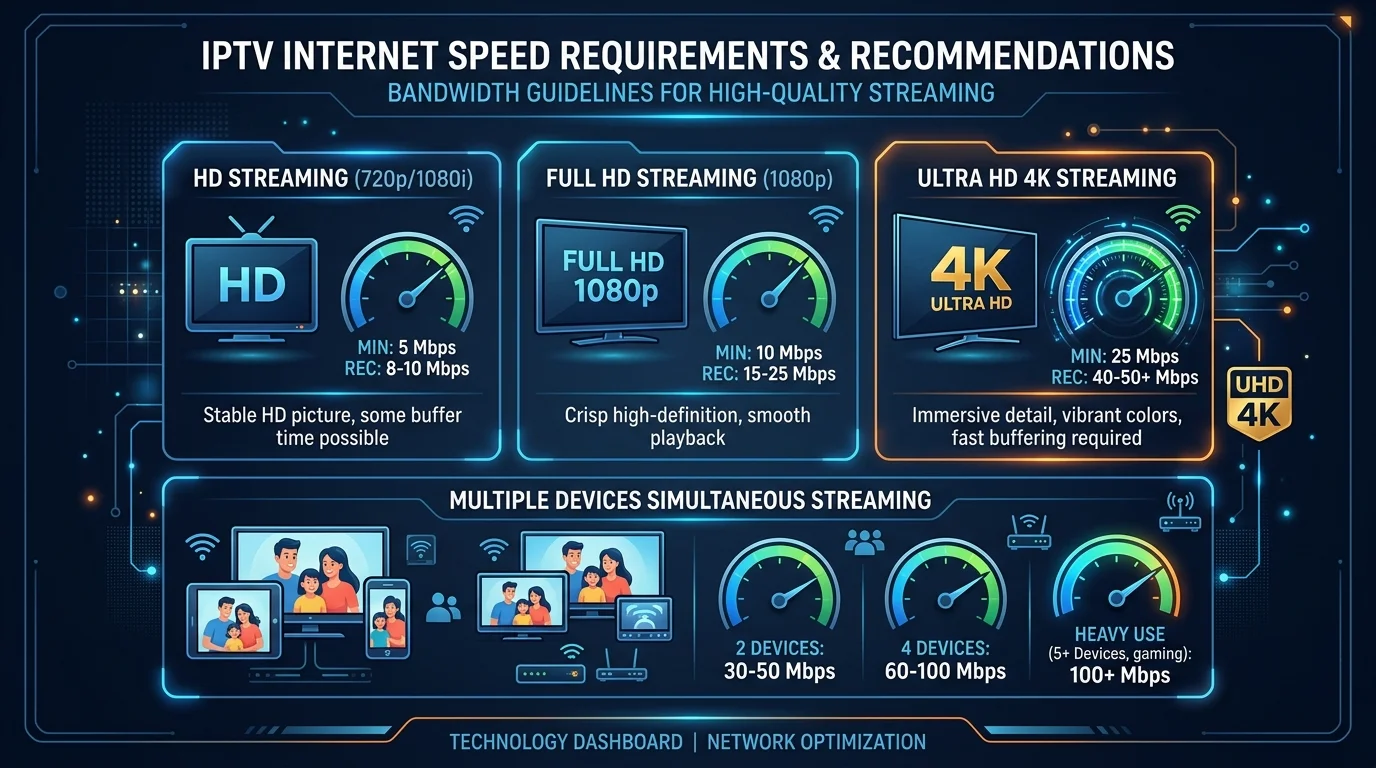
For a single standard high-definition broadcast, you typically need around 10 to 15 Mbps of consistent download bandwidth. For Full HD (1080p at 50 or 60 fps), plan for around 15 to 25 Mbps. For uncompressed or high-bitrate 4K Ultra HD live broadcasts, maintain around 25 to 35+ Mbps of dedicated throughput per active stream.
| IPTV Quality | Practical Speed Guideline | Typical Use |
|---|---|---|
| HD (720p / 1080i) | Around 10–15 Mbps | Single HD stream on one TV or tablet |
| Full HD (1080p 50/60fps) | Around 15–25 Mbps | Single high-quality sports or entertainment stream |
| 4K Ultra HD (2160p) | Around 25–35+ Mbps | Single high-bitrate 4K live sports or movie stream |
| Multiple Simultaneous Streams | Scales with active screens | Several devices streaming throughout the home |
Treat these numbers as practical starting baselines rather than rigid minimums. Broadcast bitrates vary by channel: static news broadcasts require less throughput than fast-motion 60 fps sports feeds.
Practical IPTV internet speed guidelines for HD, Full HD, 4K, and multiple streams
IPTV Speed Requirements by Video Quality
Streaming bandwidth demands depend directly on video resolution and compression efficiency. Higher resolution feeds transmit significantly more data per second. Understanding IPTV speed requirements across different formats ensures uninterrupted playback.
How Much Internet Speed Does HD IPTV Need?
Standard HD (720p or 1080i) averages 3 to 6 Mbps. A stable connection of around 10 to 15 Mbps provides comfortable headroom for a single HD stream, remaining resilient over mobile data or weaker Wi-Fi.
How Much Internet Speed Does Full HD IPTV Need?
Full HD (1080p) is standard for modern live feeds. While movies need 6 to 8 Mbps, 60 fps sports feeds require 12 to 18 Mbps. To stream Full HD smoothly, your device needs around 15 to 25 Mbps of consistent throughput. For player options, check our guide on the best IPTV players for 4K streaming.
How Much Internet Speed Does 4K IPTV Need?
Ultra HD 4K demands high throughput and hardware decoding. For high-bitrate internet speed for 4K IPTV, maintain around 25 to 35+ Mbps of clean bandwidth per device, as live sports spike past 35 Mbps. Review our analysis of the best IPTV devices in 2026 to ensure your box has the GPU power to decode 4K HEVC streams.
Is Internet Speed More Important Than Connection Stability?
When troubleshooting streaming problems, many subscribers focus exclusively on raw download speed. However, in live broadcasting, connection stability is just as critical as raw bandwidth. A rock-solid 50 Mbps connection consistently delivers a smoother IPTV experience than an erratic 500 Mbps connection plagued by jitter and packet loss.
Unlike on-demand services like Netflix that cache minutes ahead, live IPTV broadcasts are decoded in real time. If incoming packets are delayed or dropped, playback pauses immediately.
Key network metrics determining stability include:
- Download Speed: Throughput transferred per second.
- Latency (Ping): Round-trip time; low ping ensures snappy channel zapping.
- Jitter: Timing variation; high jitter starves playback buffers.
- Packet Loss: Dropped packets that trigger screen freezing.
- Connection Drops: Micro-drops that disconnect stream sockets.
- Network Congestion: Node saturation causing packet delays.
Both speed and stability are indispensable: you need sufficient throughput to exceed peak bitrate, combined with steady packet delivery to keep buffers full.
Transform Your TV withiScreenHD IPTV
How Much Internet Speed Do You Need for Multiple IPTV Devices?
Every active screen in your home adds its own independent bandwidth requirement. When multiple household members stream different channels simultaneously, total demand scales accordingly. Calculating internet speed for multiple IPTV devices requires adding each screen's baseline together:
- One HD Stream: Around 10 to 15 Mbps.
- Two HD Streams: Around 20 to 30 Mbps combined.
- One 4K Plus One HD Stream: At least 45 to 55 Mbps.
- Two or More 4K Streams: 60 to 80+ Mbps of dedicated bandwidth.
However, IPTV does not operate in isolation. Your connection simultaneously supports video calls, cloud backups, and gaming. If your home has a 50 Mbps plan and two people stream Full HD while another downloads a file, bandwidth saturates. Sizing your household IPTV bandwidth requirements means accounting for all active users.
Why Can IPTV Buffer Even With Fast Internet?
Dealing with IPTV buffering despite fast internet is a common frustration. A subscriber runs a speed test, sees 400 Mbps, and assumes freezing on their TV must be a provider outage.
Standard speed tests measure short bursts of file transfers to nearby ISP nodes. Live IPTV requires continuous, low-jitter transport from media servers across international routing pathways.
The following table highlights primary bottlenecks triggering buffering on fast connections:
| Problem | What You May Notice | What to Check |
|---|---|---|
| Network congestion | Slower playback during peak evening hours | Competing household downloads or active gaming |
| Weak Wi-Fi | Inconsistent playback and frequent quality drops | Distance to router and wireless signal strength |
| Packet loss | Sudden screen freezing or audio dropouts | Network cable integrity or ISP node saturation |
| High latency | Delayed channel switching and sluggish guide | Ping times to remote servers and local gateway |
| Device limitation | Stuttering frames, overheating stick, or slow UI | Device RAM utilization and hardware decoding |
| Stream-specific issue | One channel stutters while others play fine | Alternate channel feeds or backup streams |
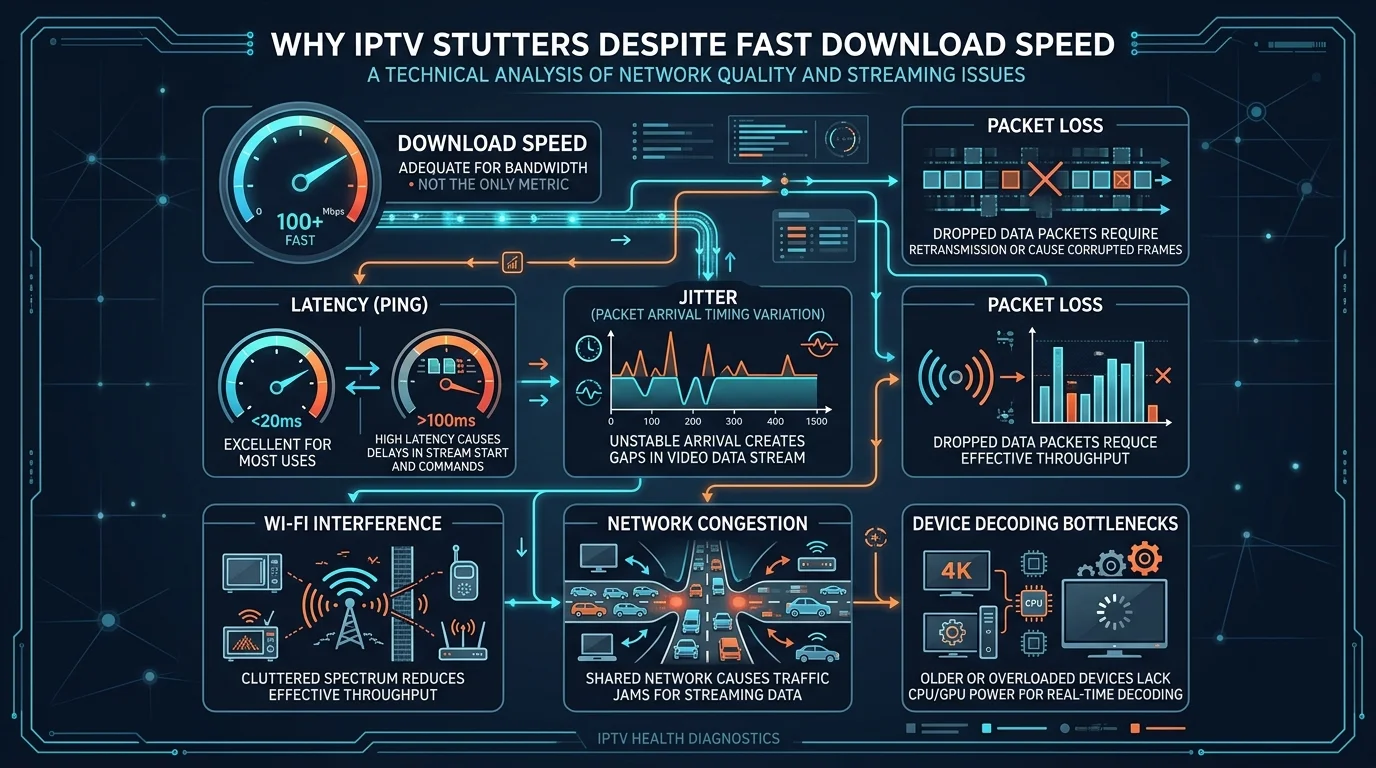 Infographic showing key network factors affecting IPTV including speed, latency, jitter, packet loss and Wi-Fi congestion
If streams stutter between 8:00 PM and 10:30 PM, the root cause is frequently neighborhood contention or peak-time wireless interference. For an exhaustive breakdown, read our guide on why IPTV buffers only at night and how to fix it.
How to Test Your Internet Speed for IPTV
Testing your internet speed for IPTV streaming requires measuring under the exact conditions in which you watch television. Testing your smartphone next to your router will not reveal what your television in the bedroom experiences.
Follow this testing protocol:
- Test on the Actual IPTV Device: Run a speed test directly on your Smart TV, Firestick, or Android box.
- Halt Competing Activity: Pause active downloads, torrents, and console updates.
- Check Key Metrics: Document Download Speed, Latency (Ping), and Jitter.
- Test at Peak Hours: Compare off-peak hours with prime-time evening hours (7:00 PM to 11:00 PM).
- Compare Wired vs Wireless: Compare Wi-Fi and Ethernet on the same hardware.
- Test During Buffering: Run a test immediately when freezing occurs to spot throughput drops.
Smartphone tests are deceptive because phones have advanced antennas. Streaming sticks and TVs feature modest Wi-Fi chips shielded behind metal panels.
Wi-Fi vs Ethernet for IPTV
Choosing between wireless Wi-Fi and a physical cable is one of the most impactful decisions for streaming stability.
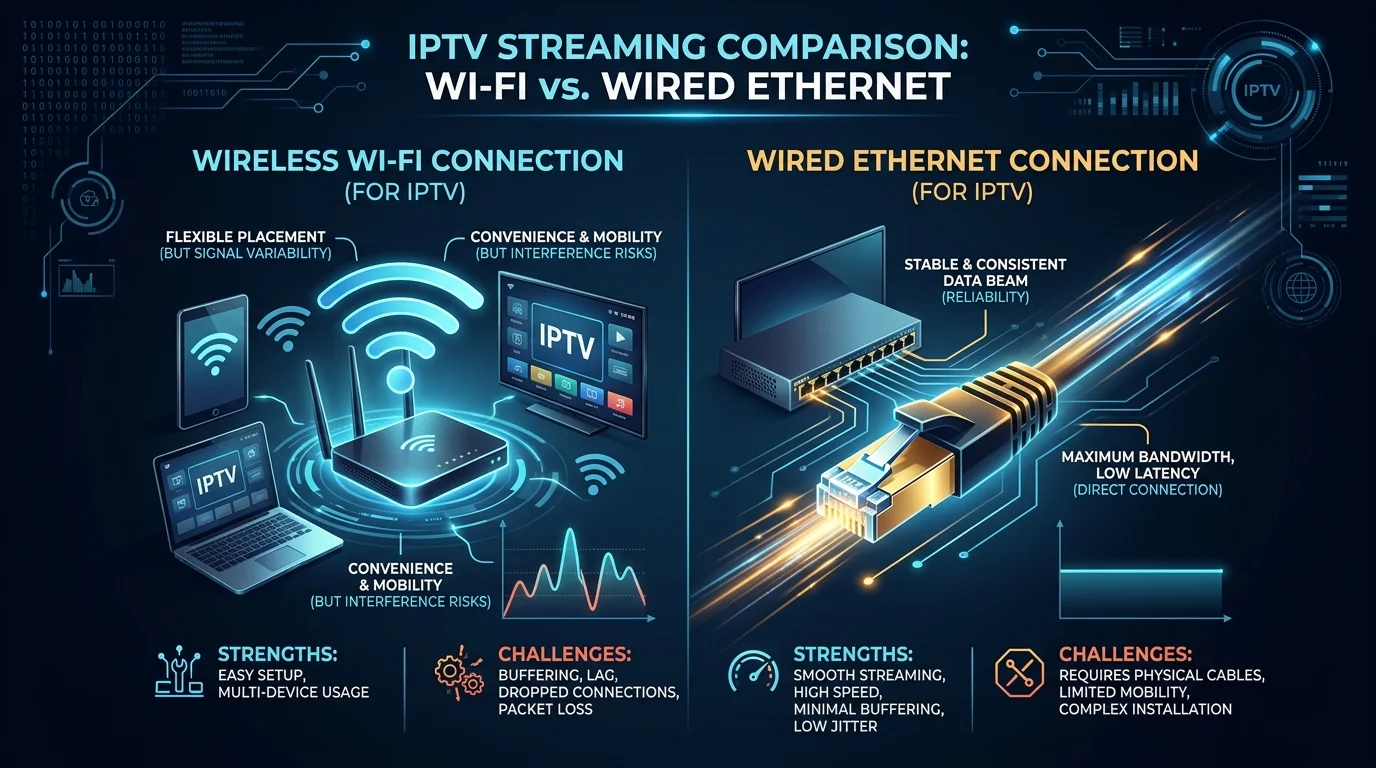 Visual comparison of Wi-Fi vs Ethernet for IPTV streaming stability and performance
Wireless Wi-Fi Connections
Wi-Fi offers convenience, eliminating cables through living spaces. In modern homes with strong line-of-sight to the router, Wi-Fi speed for IPTV provides plenty of throughput. However, wireless signals face environmental hazards: solid walls, radio interference from household electronics, channel congestion from neighboring networks, and signal fading from movement.
Wired Ethernet Connections
Connecting streaming hardware via Cat6 eliminates wireless vulnerabilities. The advantage of Ethernet for IPTV is not raw speed—many TVs feature 100 Mbps ports—but unyielding consistency. Wired connections deliver steady timing, virtually zero jitter, zero packet loss, and immunity to interference.
Is 5 GHz Wi-Fi Better for IPTV?
If running an Ethernet cable is impractical, connecting to the 5 GHz Wi-Fi band is generally superior to the older 2.4 GHz band for high-bitrate streaming—provided your room layout supports it.
The 5 GHz band delivers speeds above 300 Mbps, wider channels, and minimal interference. However, 5 GHz attenuates quickly through walls. The 2.4 GHz band penetrates walls better but caps around 30 to 50 Mbps and suffers congestion. Choose 5 GHz with line-of-sight to your router, or use 2.4 GHz/mesh systems through thick walls.
How Much Internet Data Does IPTV Use?
Streaming live television consumes continuous data, and viewers operating under strict ISP monthly data caps must monitor their consumption carefully.
Live television maintains a steady stream of high-framerate data. The table below estimates IPTV data usage across quality tiers:
| Video Resolution | Approximate Bitrate | Hourly Data Usage | Daily Usage (4 Hours) | Monthly Usage (30 Days) |
|---|---|---|---|---|
| Standard HD (720p) | 3 – 5 Mbps | ~1.3 – 2.2 GB | ~5.2 – 8.8 GB | ~150 – 260 GB |
| Full HD (1080p) | 8 – 14 Mbps | ~3.6 – 6.3 GB | ~14.4 – 25.2 GB | ~430 – 750 GB |
| 4K Ultra HD (2160p) | 20 – 35 Mbps | ~9.0 – 15.8 GB | ~36.0 – 63.2 GB | ~1,080 – 1,890 GB |
Bitrate directly drives consumption. Watching Full HD sports four hours nightly consumes over 500 GB monthly on one TV. Multiple 4K screens can easily exceed 1.5 TB. If your ISP caps data, use standard HD for background viewing and reserve 4K for live events.
Internet Speed for IPTV on Different Devices
A common misconception is that different streaming devices require different internet speeds. In reality, the device does not dictate your bandwidth requirement. An identical 1080p stream at 12 Mbps requires the exact same 12 IPTV Mbps whether played on a Smart TV or smartphone. However, device hardware influences how efficiently that incoming data is decoded.
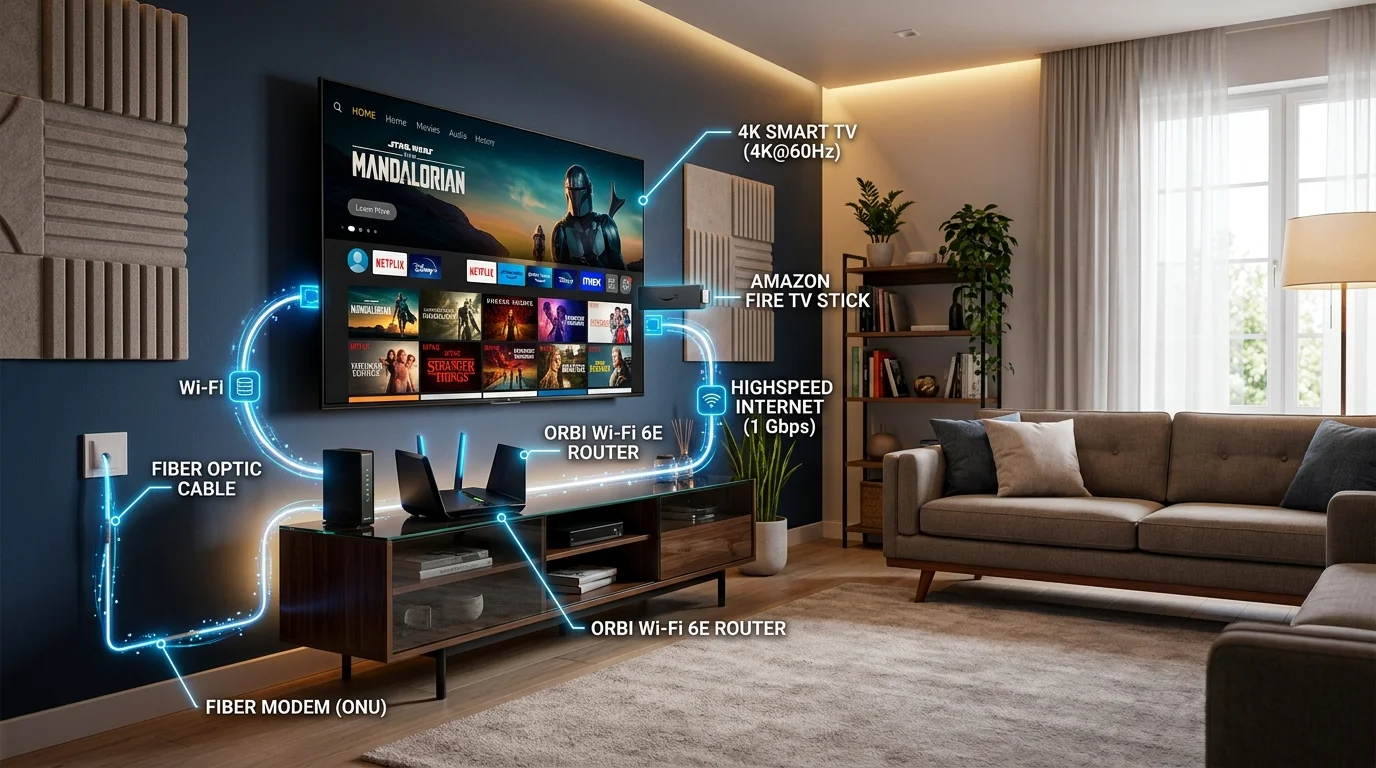 Modern home streaming network setup showing router, Smart TV, Firestick and streaming devices
Smart TV
Smart TVs feature vibrant displays, but internal processors and Wi-Fi antennas vary widely. Most feature 100 Mbps Ethernet ports. Update TV firmware regularly and check Wi-Fi signal strength in network settings.
Firestick / Fire TV
Amazon's Firestick is among the most popular platforms for IPTV. Entry-level sticks handle HD reliably, but 4K streaming demands a capable processor like the Fire TV Stick 4K Max. For setup steps, follow our how to setup IPTV on Firestick guide.
Android TV
Android TV devices—from Chromecast with Google TV to NVIDIA Shield Pro—offer excellent hardware decoding, generous RAM, and robust networking stacks that process HEVC streams smoothly.
Apple TV
The Apple TV 4K is one of the most capable streaming boxes available, with powerful A-series processors, gigabit Ethernet, and high-speed Wi-Fi. For player choices, see our Apple TV IPTV setup guide.
Phone and Tablet
Smartphones and tablets often deliver the smoothest streaming in the home due to superior Wi-Fi modems and multi-core processors. If a stream buffers on your TV but runs smoothly on your phone on the same Wi-Fi, the bottleneck is the TV hardware or placement. For supported hardware details, consult our installation and device compatibility guide.
What Internet Plan Is Best for IPTV?
When choosing an internet package, evaluate your entire household's simultaneous data usage rather than sizing strictly for IPTV:
Scenario 1: One HD IPTV Stream
For a solo viewer watching standard HD television alongside basic browsing, an entry-level broadband plan of 30 to 50 Mbps provides plenty of headroom above stream requirements.
Scenario 2: One 4K IPTV Stream
Viewers demanding pristine 4K live sports and movies need higher throughput. A plan offering 75 to 100 Mbps ensures dynamic bitrate spikes do not choke your connection.
Scenario 3: Multiple IPTV Devices
In homes where two or three screens stream live TV feeds simultaneously, combined demand reaches 50 to 70 Mbps. An internet plan of 150 to 250 Mbps delivers stability across all screens.
Scenario 4: IPTV Plus Heavy Household Internet Usage
In active homes with remote workers, gaming, backups, and 4K streaming, choose 300 to 500+ Mbps (or gigabit fiber) so downloads never disrupt evening television.
How to Improve IPTV Performance Without Upgrading Your Internet
Before paying for an expensive broadband upgrade, apply these practical network optimization steps:
- Power-Cycle Hardware: Restart modem and router every few weeks to clear internal memory and flush routing tables.
- Optimize Router Placement: Position router in an elevated, central location away from thick walls and metal appliances.
- Switch to 5 GHz Wi-Fi: Migrate streaming device to 5 GHz to avoid 2.4 GHz channel congestion.
- Use an Ethernet Cable: Connect via Cat6 Ethernet to bypass wireless interference entirely.
- Pause Heavy Downloads: Schedule game updates and backups outside television viewing hours.
- Restart Your Streaming Box: Reboot Firestick or TV box regularly to free system RAM.
- Clear App Cache: Clear cache in IPTV player settings to remove corrupted playback segments.
- Enable Hardware Acceleration: Turn on Hardware Decoding (HW) in player settings to offload decoding to GPU.
- Update Player Apps: Keep player and device OS updated. For tips, read our IPTV Smarters Plus guide.
Always use official, verified streaming apps from trusted app stores. Modified APKs from unverified sources frequently contain memory leaks that cause severe playback stuttering.
Do You Need a Faster Internet Plan for IPTV?
Upgrading your plan makes sense if:
- Concurrent household screens exceed your total bandwidth.
- Family members actively download large files or game while you stream.
- You are adding multiple 4K TVs to a sub-50 Mbps connection.
- Clean Ethernet tests prove actual throughput falls below subscribed minimums.
Conversely, upgrading will NOT fix streaming problems if:
- Bottlenecks stem from weak Wi-Fi or radio interference.
- Your line suffers from packet loss or jitter.
- Your router overheats or lacks memory under sustained load.
- Your streaming stick lacks processor power or RAM for modern codecs.
- Freezing is isolated to a single channel experiencing source issues.
If your connection delivers 150 Mbps but suffers from 8% packet loss over congested Wi-Fi, buying a 1,000 Mbps plan will not fix buffering. Address local network stability and hardware first.
IPTV Internet Speed Checklist
Use this checklist to verify your network and hardware before streaming:
- Test Speed on Actual Device: Measure speed directly on your TV or streaming stick.
- Verify Connection Stability: Check that throughput remains consistent without sudden dips.
- Measure Latency (Ping): Aim for ping under 50–70ms for fast channel zapping.
- Inspect Loss and Jitter: Keep packet loss at 0% and jitter below 15–20ms.
- Evaluate Wi-Fi Signal: Confirm strong wireless reception on your streaming device.
- Test Ethernet: Connect a wired cable to establish your true network ceiling.
- Calculate Household Streams: Account for every active screen and gaming console.
- Pause Background Downloads: Avoid large file transfers while watching live television.
- Match Quality to Bandwidth: Use HD when bandwidth is limited; reserve 4K for fast links.
- Reboot Network Gear: Power-cycle modem and router regularly.
- Reduce Congestion: Disconnect idle background devices from your network.
- Keep Software Updated: Run latest player app and firmware versions.
Transform Your TV withiScreenHD IPTV
Frequently Asked Questions About IPTV Internet Speed
What internet speed do I need for IPTV?
You need around 10 to 15 Mbps for standard HD (720p), 15 to 25 Mbps for Full HD (1080p), and 25 to 35+ Mbps for 4K Ultra HD per active stream.
Is 10 Mbps enough for IPTV?
Yes, 10 Mbps handles a single standard HD stream if no other devices are active, but leaves little headroom for Full HD or 4K.
Is 25 Mbps enough for 4K IPTV?
A stable 25 Mbps connection runs compressed 4K feeds, but live sports with dynamic bitrates often peak higher, making 35+ Mbps safer.
How much speed do I need for two IPTV streams?
Two HD streams need 20 to 30 Mbps, two Full HD streams require 30 to 50 Mbps, and two 4K streams demand 60 to 80+ Mbps.
Why does IPTV buffer even with fast internet?
Buffering on fast broadband is usually caused by network instability: weak Wi-Fi, radio interference, high packet loss, elevated jitter, or device processor limitations.
Is Ethernet better than Wi-Fi for IPTV?
Yes. Ethernet provides consistent packet delivery, near-zero jitter, and complete immunity to wireless interference, delivering far superior live streaming stability.
Does IPTV use a lot of internet data?
Yes. Standard HD uses approximately 1.3 to 2.2 GB per hour, Full HD uses 3.6 to 6.3 GB per hour, and 4K Ultra HD consumes 9 to 16 GB per hour.
Does higher internet speed always improve IPTV?
No. Once you meet the stream bitrate with headroom, extra speed provides no benefit. Reducing latency and packet loss is far more impactful.
What internet speed is best for multiple IPTV devices?
For homes with several streaming screens and normal family internet use, a plan between 150 and 300 Mbps offers the ideal balance of speed and reliability.
Should I upgrade my internet if IPTV keeps buffering?
Only upgrade if speed tests on your streaming stick confirm your available bandwidth falls below required baselines. If speed is high but buffering persists, fix Wi-Fi or router issues first.
Conclusion
Determining the right internet speed for IPTV is not about buying the most expensive package your provider offers. It is about matching your bandwidth to your screen count and ensuring steady network quality.
Standard HD requires modest bandwidth (around 10–15 Mbps), Full HD demands a solid baseline (around 15–25 Mbps), and live 4K feeds require comfortable headroom (around 25–35+ Mbps). Every extra screen in your home adds to this total, making household usage the true figure to plan around.
Equally important, raw download speed is only half the equation. Low latency, minimal jitter, zero packet loss, and stable Wi-Fi or Ethernet connections are what truly prevent buffering. By testing directly on your streaming device, prioritizing wired connections where practical, and keeping your hardware optimized, you can enjoy seamless, buffer-free entertainment.
When paired with a reliable service like iscreenhd IPTV, an optimized network delivers crisp live sports, responsive channel switching, and premium picture quality. Explore our flexible subscription pricing, browse our extensive channel lineup, or consult our frequently asked questions and support and contact team to configure your ideal home streaming setup today.