IPTV Audio and Video Out of Sync in 2026: Causes and Fixes
Introduction
Few streaming glitches disrupt viewing faster than an audio and video timing mismatch. Experiencing an IPTV audio and video out of sync glitch ruins immersion when dialogue feels unnatural and mouth movements fail to align with sound.
An IPTV lip sync error is common across modern streaming setups. Unlike traditional broadcast television where signals were physically locked along cables, digital IPTV streams travel across multi-stage internet networks. Media packets are compressed at the source, routed across servers, unpacked by streaming devices, decoded, rendered on displays, and amplified through speakers or headphones.
Because each stage requires processing time, a delay of just 100 milliseconds makes IPTV sound and picture not synchronized. In this guide from iscreenhd IPTV, we explain why audio and video desynchronize in 2026 and how to restore alignment across your devices.
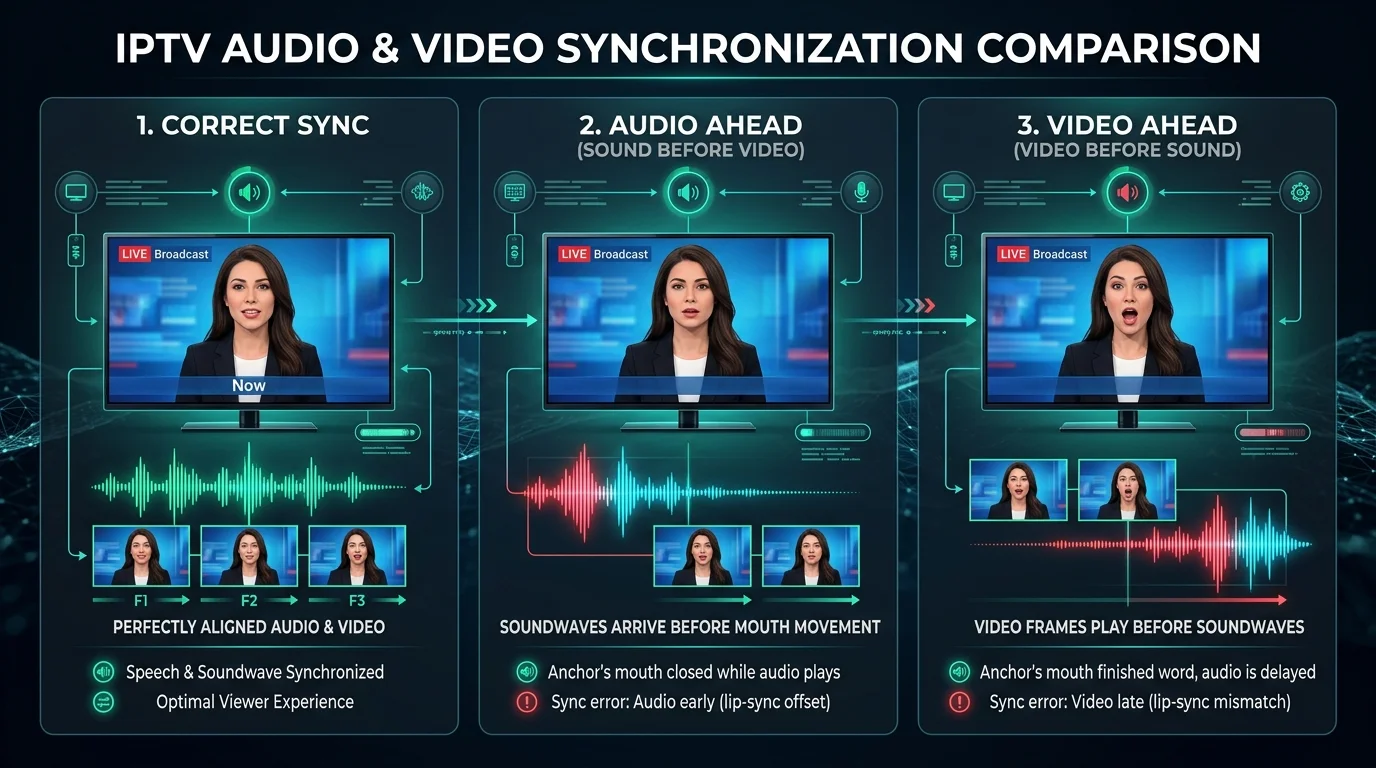
IPTV Audio and Video Sync Comparison
Why Is My IPTV Audio and Video Out of Sync?
In digital streaming, video frames and audio tracks travel inside container formats with Presentation Time Stamps (PTS). Under normal conditions, your player synchronizes both tracks, delivering clean IPTV audio video sync.
However, because 4K video requires far more decoding power than audio, hardware can drift out of alignment. If TV motion processing holds video while passing audio instantly, sound plays ahead of picture. If wireless audio buffers packets, picture renders before sound.
| Symptom | Probable Cause | Focus Area |
|---|---|---|
| Audio ahead of video | TV picture processing, video decoder | Motion smoothing, display lag, GPU mode |
| Video ahead of audio | Audio processing, Bluetooth, soundbar | Headphone buffer, soundbar delay, eARC |
| Only one channel affected | Upstream broadcast encoder | Channel transcode, secondary feed |
| Every channel affected | Device OS, player settings, TV sync | Global audio offset, HDMI timing |
| Bluetooth causes delay | Wireless audio codec latency | Headphone latency, wired audio |
| Soundbar causes delay | Digital sound processing | Pass-through (PCM vs Bitstream) |
| Started after app update | Player decoding engine, audio policy | Decoder toggle (HW vs SW), app cache |
| Delay changes over time | Buffer starvation, frame drops, jitter | Buffer size, network stability |
Diagnosing an IPTV sound delay requires isolating each hardware component systematically.
What Does Audio and Video Sync Mean?
Audio and video synchronization—commonly called lip-sync—refers to the temporal alignment between visual motion and its accompanying acoustic sound.
Video consists of sequential still frames displayed at 25 to 60 frames per second, while audio is a continuous digital waveform sampled at 44.1 kHz or 48 kHz. Because human communication relies on processing facial expressions and vocal sounds simultaneously, the brain detects minor timing mismatches.
Broadcast engineering standards indicate that audio arriving more than 15ms before video or lagging more than 40ms behind video becomes noticeably distracting. Discrepancies exceeding 100ms disrupt comprehension and cause eye fatigue during dialogue scenes.
Is the Audio Ahead or Is the Video Delayed?
Determining whether sound precedes picture or picture precedes sound is the essential first step in troubleshooting, pointing to different hardware bottlenecks.
When Audio Comes Before Video
When IPTV audio ahead of video occurs, you hear speech before visual action appears on screen:
- TV Picture Processing: Motion smoothing and upscaling hold video frames in display memory while audio plays instantly.
- Video Decoder Bottlenecks: A streaming GPU struggling with 4K streams decodes frames slowly, falling behind audio.
- Display Lag: Disabling low-latency picture modes routes video through lengthy buffers.
When Video Comes Before Audio
When IPTV video ahead of audio occurs, visual motion displays first, followed by delayed sound:
- Bluetooth Latency: Wireless headphones buffering audio over Bluetooth introduce 100ms to 250ms of delay.
- Soundbar Processing: Surround decoding in soundbars or AV receivers adds signal latency.
- Audio Output Settings: Transcoding stereo feeds into surround formats over optical cables introduces lag.
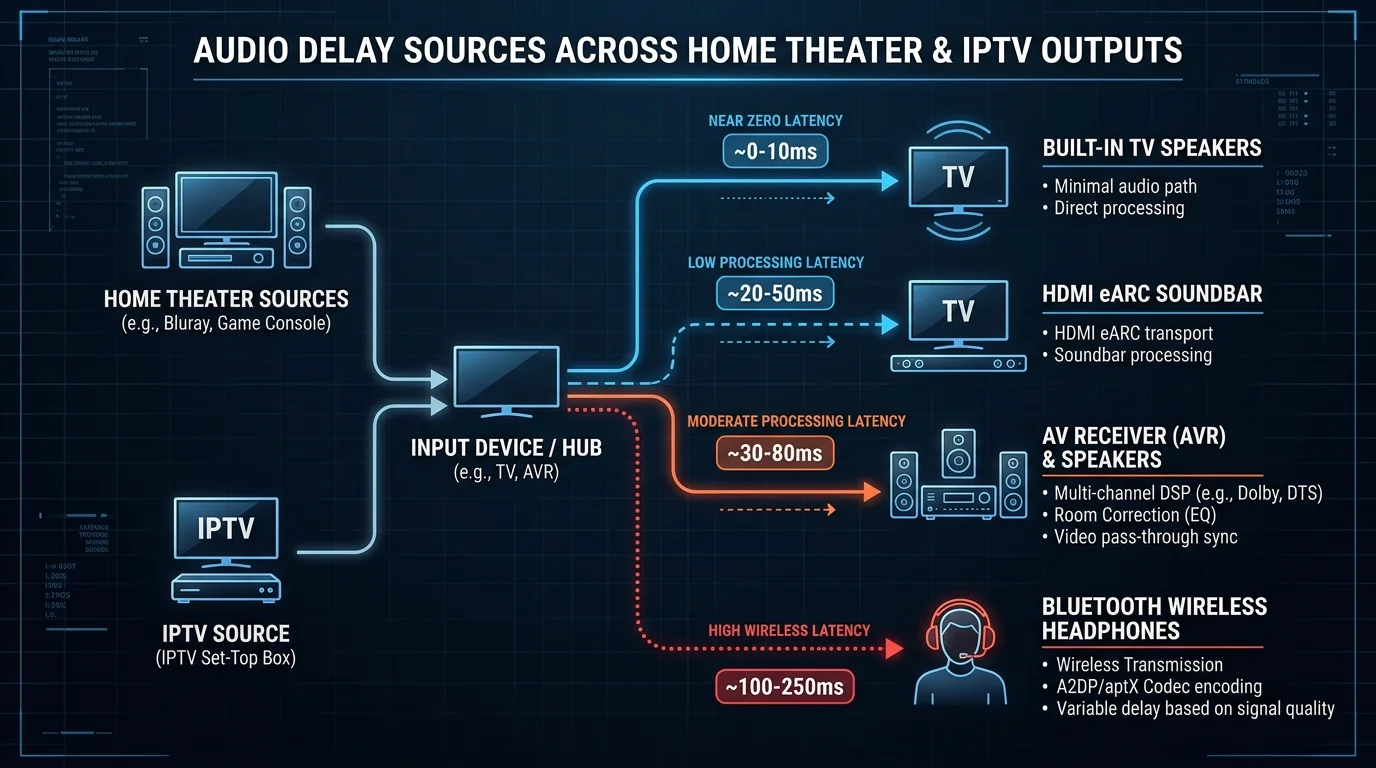 Audio Playback Chain Delay Sources
Before Changing Settings: Find Where the Problem Comes From
Before adjusting television menus or reinstalling apps, isolate the source of timing errors:
- Test Another Channel: If only one channel suffers an IPTV video out of sync glitch, the issue lies in upstream encoding.
- Test VOD vs Live TV: If VOD is synchronized but live TV drifts, the issue relates to broadcast packaging.
- Test Built-in TV Speakers: Disconnect external audio. If sound aligns on built-in speakers, external audio gear is the cause.
- Test Another IPTV Player: If using IPTV Smarters Pro, test an alternative app like TiviMate. If the issue disappears, adjust your original decoder. Explore our guide on the best IPTV players for 4K streaming.
- Test Another Device: Check playback on a phone or tablet on the same Wi-Fi to isolate whether your TV or stick is at fault.
- Test Another Streaming App: Open YouTube on the TV. If lag persists across apps, display settings or HDMI processing are responsible.
How to Adjust Audio Delay in an IPTV Player
When timing discrepancies affect all channels and originate in your player, adjusting software settings is the fastest solution. Dedicated IPTV applications provide how to fix IPTV audio delay controls to compensate for hardware latency.
This setting appears as Audio Delay, Audio Offset, or Audio Sync / Lip Sync in on-screen audio menus:
- Select a Dialogue Channel: Tune to a news broadcast or talk show with clear on-camera speech.
- Open Audio Settings: Bring up the on-screen display (OSD) and choose Audio Settings.
- Locate the Audio Offset Slider: Find the millisecond adjustment tool.
- Apply Offset: If audio is ahead of video, enter a positive (+) delay (e.g., +100ms). If video is ahead of audio, enter a negative (-) delay (e.g., -100ms).
- Verify Alignment: Watch speech for thirty seconds, adjusting in 25ms steps until lips and audio match, then save globally.
How to Fix IPTV Audio and Video Sync on a Smart TV
When running IPTV apps on Samsung Tizen, LG webOS, Sony Google TV, or Hisense displays, desynchronization often stems from picture processing or audio transcoding. Resolving Smart TV IPTV audio delay requires adjusting display latency and sound pass-through:
- Switch to TV Speakers: Disconnect external audio to verify baseline stream sync.
- Calibrate TV AV Sync: In sound settings, increase audio delay (0ms to 250ms) to hold sound while video renders.
- Set Output to PCM or Pass-Through: Switch digital audio to Stereo PCM or Pass-Through to eliminate conversion latency.
- Enable Game Mode: Turn on Game Mode to disable motion smoothing and image filters that delay video.
- Power-Cycle TV: Unplug the TV for 60 seconds to clear memory. For better hardware performance, explore our guide to the best IPTV devices for 4K streaming in 2026.
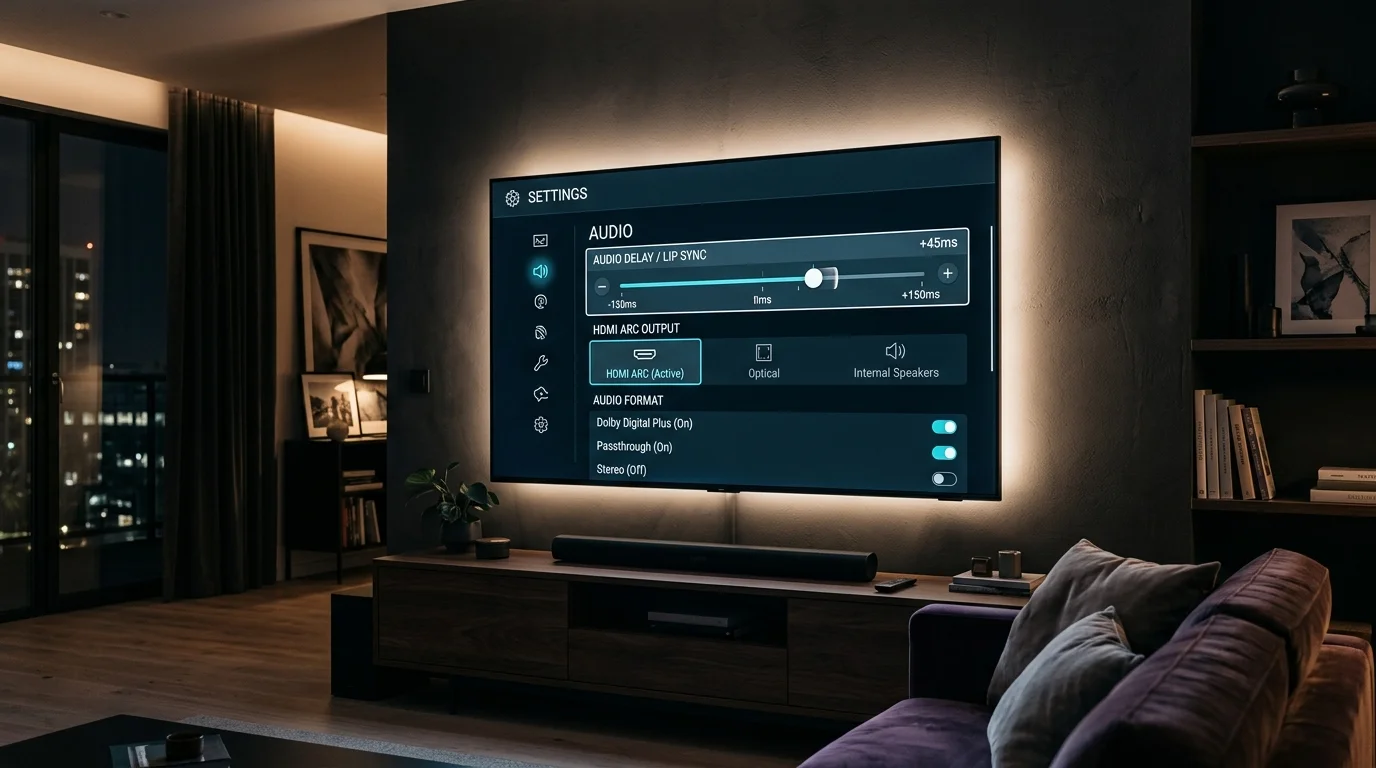 Smart TV IPTV Audio Sync Settings
How to Fix IPTV Audio Delay on Firestick or Fire TV
Amazon Fire TV devices are popular for streaming, but resource limits and audio settings can cause Firestick IPTV audio delay. Follow these steps to restore alignment:
- Restart Fire TV: Go to Settings > My Fire TV > Restart, or hold Select and Play/Pause on your remote.
- Run AV Sync Tuning: In Display & Audio > Audio > AV Sync Tuning, align the bouncing ball with the audio click.
- Change Surround Sound to Stereo PCM: In Surround Sound, choose PCM or Stereo instead of Best Available.
- Clear Player Cache: In Manage Installed Applications, choose your IPTV app, and select Clear Cache.
- Use Wall Power: Power your stick with the official wall adapter rather than low-power TV USB ports. For full setup instructions, read our guide on how to setup IPTV on Firestick.
How to Fix IPTV Audio and Video Sync on Android TV
Android TV and Google TV devices (NVIDIA SHIELD Pro, Google TV Streamer, Chromecast 4K) offer granular playback controls. Resolving an Android TV IPTV audio delay focuses on decoders and sound settings:
- Switch Video Decoder (Hardware vs Software): In player settings, toggle between Hardware (HW) and Software (SW) decoding. Hardware uses the GPU for smooth 4K playback, while software uses the CPU and handles irregular stream timestamps more flexibly. If authorization errors arise, see our guide on fixing IPTV Smarters failed to authorize errors.
- Configure Audio Output: In Settings > Display & Sound > Advanced Sound Settings, set Select Formats to None or Stereo PCM. Disable Dolby Audio Processing.
- Update Player Apps: Keep your IPTV app updated via Google Play for the latest sync bug fixes.
Transform Your TV withiScreenHD IPTV
Can Bluetooth Cause IPTV Audio Delay?
Wireless audio provides convenience, but it is the most frequent cause of Bluetooth IPTV audio delay. If playback synchronizes on TV speakers but lags through wireless headphones or earbuds, Bluetooth buffer latency is responsible.
Standard Bluetooth codecs (SBC and AAC) buffer audio packets, creating 100ms to 250ms of inherent latency. In live streaming, this produces an obvious lip-sync mismatch.
To resolve Bluetooth delay:
- Enable Low-Latency Codecs: Use headphones supporting aptX Low Latency (aptX-LL) or LC3 to keep latency below 40ms.
- Apply Negative Player Offset: If headphones add 200ms of lag, apply a -200ms audio offset in your player.
- Use RF Wireless Headphones: 2.4 GHz RF wireless headphones with dedicated base stations eliminate Bluetooth lag.
- Use Wired Audio: Connecting wired headphones directly into your TV or remote provides zero-latency sound.
Can a Soundbar or AV Receiver Cause IPTV Lip-Sync Problems?
Connecting external audio systems enhances immersion, but adding intermediate processors increases timing vulnerability.
When streaming IPTV, video travels to the TV display while audio routes to a soundbar or AV receiver via HDMI ARC/eARC or optical cables. If a soundbar requires 80ms to decode surround audio while the TV renders video immediately, sound arrives late. Conversely, if TV video processing delays picture by 120ms while audio passes through, sound plays early.
To calibrate external audio:
- Test TV Speakers First: Disconnect external audio to verify stream synchronization.
- Use HDMI eARC Over Optical: eARC provides high bandwidth and mandatory lip-sync correction protocols that align audio and video automatically.
- Adjust Soundbar Delay: Use your soundbar app or remote to adjust audio delay in 10ms increments.
- Enable Auto Lip-Sync: Activate Auto Lip-Sync in your TV HDMI CEC settings.
Can HDMI or TV Processing Cause Audio Delay?
Modern 4K televisions process video extensively to enhance contrast, color, and motion smoothness. While these enhancements look impressive, they introduce display latency that causes IPTV audio ahead of video errors.
Features that delay video frames include motion interpolation (TruMotion, Motionflow), dynamic tone mapping, and noise reduction. To minimize processing lag:
- Enable Game Mode: Switching picture mode to Game Mode bypasses picture processing, reducing display latency from over 80ms to under 15ms.
- Use Certified HDMI 2.0/2.1 Cables: High-speed certified cables prevent signal jitter and handshake delays.
- Direct TV Connection: Avoid running streaming devices through unpowered splitters or switches.
Can Internet Problems Cause IPTV Audio and Video Sync Issues?
Viewers often ask whether a slow internet connection causes an IPTV audio delay. Understanding the difference between buffering and sync errors clarifies the answer.
Network congestion typically causes freezing, spinning loading circles, or complete playback halts because audio and video packets travel in the same stream container. However, network instability can indirectly disrupt timing:
- Buffer Recovery Glitches: When a stream resumes after buffering, some players start audio instantly while the video decoder waits for a keyframe, creating an offset.
- Jitter and Dropped Frames: Heavy packet jitter disrupts player timing clocks. If the player drops corrupted video frames to maintain live pace, audio runs ahead.
To verify your speed and line quality, consult our guide on what internet speed you need for IPTV in 2026. If playback issues occur during peak evening hours, see our analysis on why IPTV buffers only at night.
Why Is IPTV Audio Out of Sync on Only One Channel?
If most channels in your playlist play in sync but a single channel shows persistent IPTV audio out of sync problems, your local hardware and internet are working properly. The fault originates upstream at the broadcast encoder.
Upstream factors include:
- Transcoder Timestamp Errors: The source broadcast server may encode misaligned Presentation Time Stamps (PTS).
- Live Stadium Feeds: Temporary audio mixer timing offsets at sporting venues.
- Secondary Audio Track Lag: Alternative audio tracks (commentary or stadium sound) can experience encoding latency absent on the main feed.
To resolve single-channel issues, switch from surround sound to stereo in player audio settings, look for backup feeds (HD or FHD), or report the channel to support with device details.
Security Note: Never share account passwords, M3U playlist URLs, or MAC addresses in public forums.
Why Did IPTV Audio Sync Break After an App Update?
A setup that worked smoothly for months can suddenly experience synchronization errors following an automatic app or OS update.
Common update-related causes include:
- Decoder Resets: Updates often reset player decoding from Software to Hardware (or vice versa), creating incompatibility with your GPU.
- Audio Output Changes: New app versions may enable surround pass-through or volume normalization features that add latency.
- Buffer Architecture Adjustments: Aggressive low-latency buffer settings introduced in updates can drop video frames while audio plays.
- System Firmware Bugs: OS updates on Fire TV, Google TV, or tvOS can alter HDMI audio handshakes. For Apple device troubleshooting, review our Apple TV IPTV setup guide.
To fix post-update sync issues, revert your video decoder setting, clear app cache, and verify audio offset sliders.
Can Decoder Settings Affect IPTV Audio and Video Sync?
Video decoders decompress incoming video streams into visual frames on screen. Selecting the correct decoder mode is essential for synchronization:
- Hardware (HW) Decoding: Offloads decompression to the device GPU. It is power-efficient and handles 4K 60fps streams smoothly on modern hardware like Fire TV Stick 4K Max, Apple TV 4K, and NVIDIA SHIELD.
- Software (SW) Decoding: Uses the central CPU to unpack video. While more resource-heavy, software decoding handles non-standard broadcast profiles and resolves an IPTV player audio delay or erratic timestamps more flexibly.
- Testing Decoder Modes: Toggle decoder settings and test playback for 60 seconds before making further adjustments. If your app has persistent limits, consult our IPTV Smarters Plus guide.
IPTV Audio Sync Troubleshooting Decision Tree
Use this mobile-friendly decision tree to isolate and resolve your audio and video synchronization problem:
[AUDIO AND VIDEO OUT OF SYNC]
         │
         ▼
Does it happen on every channel?
   ├── NO  ──► [Stream Issue]: Check backup feeds, alternate audio track, report to support.
   └── YES ──► Does another player have the same issue?
                ├── NO  ──► [Player Issue]: Adjust audio offset, toggle HW/SW decoder, clear cache.
                └── YES ──► Does another device have the issue?
                             ├── NO  ──► [Device/TV Issue]: Continue audio checks below.
                             └── YES ──► [Network/Stream Issue]: Check jitter/ping, contact support.
                                          │
    ┌─────────────────────────────────────┘
    ▼
Does sync restore using built-in TV speakers?
   ├── YES ──► [External Audio]: Disconnect Bluetooth, calibrate soundbar delay, enable eARC.
   └── NO  ──► [Display Processing]: Enable Game Mode, turn off TruMotion, power-cycle TV.
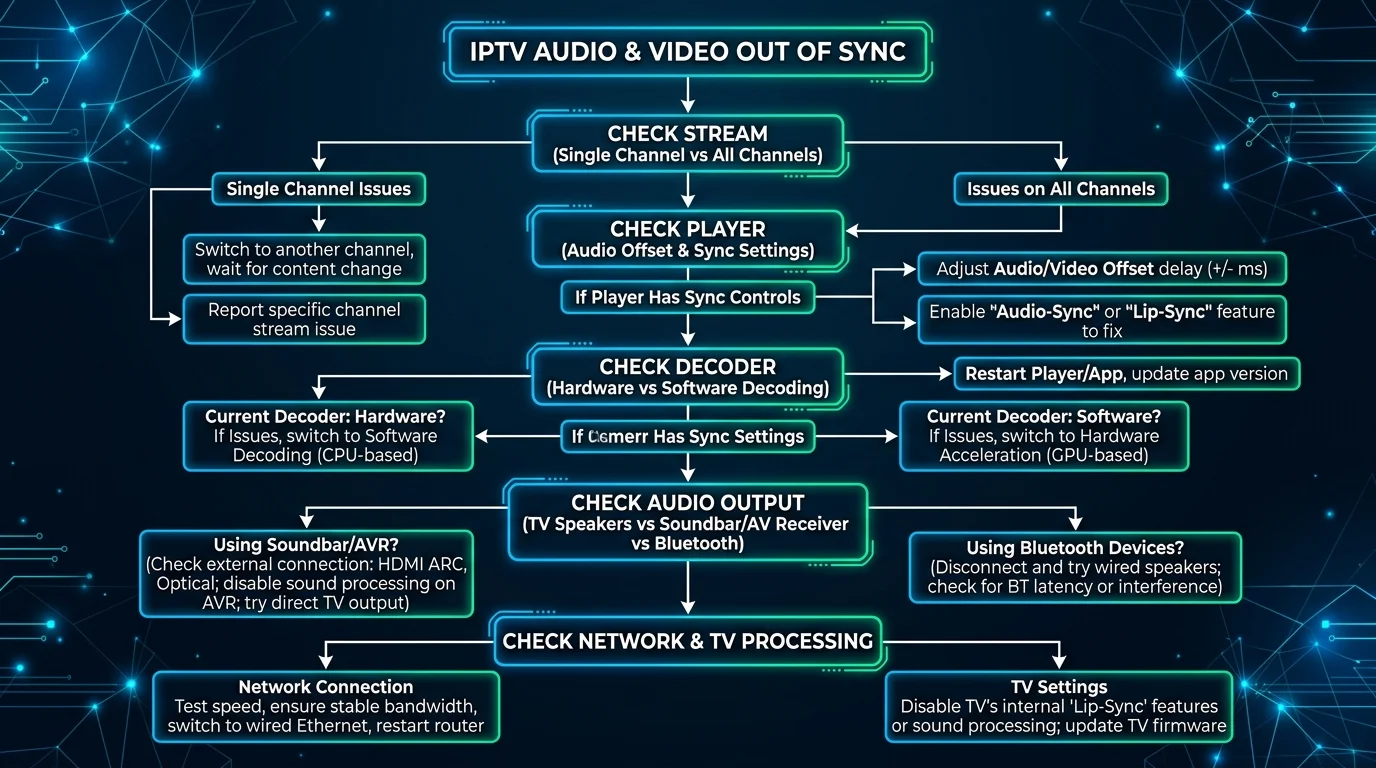 IPTV Audio Sync Troubleshooting Flowchart
IPTV Audio and Video Sync Quick Fix Checklist
Keep this diagnostic checklist handy whenever audio timing issues arise:
- Test Alternative Channels: Check if sync error is channel-specific.
- Switch Audio Tracks: Change surround sound to stereo.
- Use TV Speakers: Disconnect Bluetooth and soundbars.
- Adjust Player Offset: Apply millisecond delay in player settings.
- Toggle Video Decoder: Switch between Hardware and Software decoding.
- Enable TV Game Mode: Turn off display motion smoothing.
- Calibrate TV AV Sync: Adjust digital audio delay.
- Restart Device: Reboot Firestick, Apple TV, or Android TV.
- Power-Cycle TV: Disconnect TV power for 60 seconds.
- Clear App Cache: Clear player cache in device settings.
- Check HDMI Cables: Use certified high-speed HDMI cables.
- Contact Support: Report stream errors with device details.
Transform Your TV withiScreenHD IPTV
Frequently Asked Questions
1. Why is my IPTV audio and video out of sync?
An IPTV audio and video out of sync error happens when audio and video decode at different speeds due to TV motion smoothing, Bluetooth latency, decoder bottlenecks, or broadcast stream errors.
2. How do I fix IPTV audio delay?
To fix an IPTV audio delay, adjust your player's audio offset slider (+100ms if audio leads), enable TV Game Mode, or set audio output to Stereo PCM.
3. Why is the sound ahead of the picture on IPTV?
When IPTV audio ahead of video occurs, TV image enhancement filters delay video frames. Switch to Game Mode or adjust your TV AV Sync slider.
4. Why is IPTV video ahead of audio?
When IPTV video ahead of audio occurs, sound is delayed by Bluetooth transmission buffers or soundbar surround sound decoding.
5. Can Bluetooth cause IPTV audio delay?
Yes. Bluetooth adds 100ms to 250ms of buffer delay. This Bluetooth IPTV audio delay is resolved using low-latency codecs (aptX-LL), negative audio offset, or wired headphones.
6. Can a soundbar cause IPTV lip-sync problems?
Yes. Multi-channel audio decoding adds latency. Connect your soundbar via HDMI eARC, enable Auto Lip-Sync, and set digital audio output to Pass-Through.
7. How do I adjust audio delay in an IPTV player?
Most players include an IPTV player audio delay slider in audio settings. Adjust the offset in 25ms steps until speech matches lip movements.
8. Why is only one IPTV channel out of sync?
If only one channel has an IPTV sound delay, the issue originates upstream at that channel's encoder. Switch to an alternative feed or report it to support.
9. Can a Smart TV cause IPTV audio sync problems?
Yes. A Smart TV IPTV audio delay is often caused by motion smoothing or audio format transcoding. Switch to Game Mode and Stereo PCM output.
10. Why did IPTV audio synchronization break after an app update?
Updates can reset custom audio offsets, switch video decoders (HW to SW), or alter audio drivers. Re-check player decoder settings and clear app cache.
Conclusion
Resolving an IPTV audio and video out of sync issue becomes straightforward once you understand the digital playback chain. Desynchronization is a measurable timing discrepancy introduced by display image processing, external audio latency, video decoder friction, or upstream broadcast encoding.
By following this systematic isolation strategy—identifying whether audio leads or lags video, checking channel-specific versus playlist-wide patterns, testing built-in speakers, enabling Game Mode, toggling hardware and software decoders, and applying player audio offset adjustments—you can resolve bottlenecks and restore seamless viewing.
At iscreenhd IPTV, our streaming infrastructure delivers stable, high-bitrate live television and sports across all platforms. If you want a reliable IPTV service with comprehensive device support, explore our subscription pricing plans. For additional configuration assistance, view our channel lineup, read our supported devices installation guide, consult our frequently asked questions, learn how to choose a reliable IPTV provider, or contact our customer support team.